Debloat Fedora 37 Gnome

As usual, there's a lot of bloat is coming together with system. But nevertheless I must say I really love how stable it is working on my Asus Transformer Mini T102HA. I really love their Gnome implementation - all the tablet features are just operating out of the box.

ibus-typing-booster is taking up to 150Mb of RAM


If you don't know how to type this might be a good tool for you - https://mike-fabian.github.io/ibus-typing-booster/ But for me it's just a memory eating unneeded extra bloat.

$ ps v $(pgrep -f ibus-typing-booster)
    PID TTY      STAT   TIME  MAJFL   TRS   DRS   RSS %MEM COMMAND
   2290 ?        Sl     0:30     41     0 797219 159284  4.1 /usr/bin/python3 /usr/share/ibus-typing-booster/engine/main.py --ibus

$ yum remove ibus-typing-booster-2.19.13-2.fc37.noarch

packagekitd is taking up to 300Mb of RAM

This this right after service restart, but earlier before it was 300+ Mb.

$ ps v $(pgrep packagekitd)
    PID TTY      STAT   TIME  MAJFL   TRS   DRS   RSS %MEM COMMAND
   6260 ?        Ssl    0:07     10     0 574388 108200  2.8 /usr/libexec/packagekitd

To me, it shouldn't be like this. No shitty interim wrapper service to wrap rpm/apt/pacman into some common API that gui frontend programs can work with, shouldn't take that much of precious RAM.

Updated this bug https://bugzilla.redhat.com/show_bug.cgi?id=1354074 and https://github.com/PackageKit/PackageKit/issues/576 but I'm in a mood of throwing it into bin without waiting for the solution. Even by paying a price of loosing gnome-software.

Later I found this ticket, where there's a suggestion to configure a timeout for exiting. I set it to 30 seconds and it shuts itself down if not being used:

$ cat /etc/PackageKit/PackageKit.conf

# Shut down the daemon after this many seconds idle. 0 means don't shutdown.
ShutdownTimeout=30

Who needs firewall and modem in 21st century?

If you're not going to create any local network services (samba, telnet, cups, whatever proxy)  with an aim to let anyone from your local network (192.168.0.0) to use them without any authorization, then you don't need a firewall. Really - if you don't have any plans to have such unprotected services, you shouldn't care about firewall. It's a lame idea first of all, to have some uncontrolled bunch of garbage local services to be "protected" by firewall. Where "protected" usually means restricted from being used.

yum remove firewalld

Same goes for ModemManager. If you don't have a modem (if you old enough to know what it is) or if you don't pair your PC with your phone via Bluetooth to use is as a modem (don't confuse it with creating a WiFi access point by your phone) - you don't need this.

yum remove ModemManager

Throw out the rest trash

Didn't have time for the below, but need to sort it out. 200 Mb of RAM is just wasted in there. If you just kill it - nothing bad happens to system: calendar in the top-row is still working. You can even invoke an address book. I really don't understand, why to keep all these services up, when everything is already working fine.

/usr/libexec/geoclue - 31 M
/usr/libexec/evolution-data-server/evolution-alarm-notify - 57 M
/usr/bin/gnome-software --gapplication-service - 89 M
/usr/libexec/evolution-source-registry - 42 M
/usr/libexec/evolution-addressbook-factory - 28 M
+ /usr/bin/python3 /usr/share/ibus-typing-booster/engine/main.py - 81 M
/usr/bin/gnome-calendar --gapplication-service - 57 M

Just see what happens if you run the below:

pkill gnome-software
pkill gnome-calendar
pkill evolution-alarm
pkill evolution-addre
pkill evolution-calen
pkill evolution-sourc

To be continued to properly fix (wipe) all that shit from being started automatically.

Fedora 37 / Pop OS / Xubuntu / Manjaro / RebornOS on Asus Transformer Mini T102HA

Following up my previous post, I decided to give it a try few other Linux distros. And I was deeply impressed by results.

What I did, is that I flashed my USB stick drive with Ventoy (highly recommend it) and then uploaded a bunch of different Linux ISOs to it. Thanks to modern standards of linux distributions, most of them are actually live cd distributions you can give a good test run, before deciding to install.

Before I move on, I need to point out something, which is in common for all Linux distributions, if we speak about this particular device - Asus Transformer Mini T102HA. In none of them, below things were working:

* Built-in camera
* Built-in microphone
* Brightness of the backlid is  not configurable from keyboard - fn+F5/F6 - these keys are just not sending any codes.
You can still configure screen brightness with using software and the same you can remap it to be configurable from some different keys. Possible troubleshooting is described here - https://bbs.archlinux.org/viewtopic.php?id=229572

Fedora 37 with Gnome - 👍👍👍

Sound - works without issues
Screen orientation and touchscreen - is fine, when X boots up. In GRUB and system boot up the screen is still rotated - but we already know how to fix it (see "Fixing screen orientation in console" section here)
Automatic screen rotation -  works out of the box, but only with detached keyboard.
Screen brightness can be configured with applet
Couple of screen rotations - no issues
No screen tearing, thanks to Wayland

I noticed some strange backlid flickering on key presses, when it is set to low level and modal dialog is displayed, like prompting WiFi password

System information

# inxi -b
System:
  Host: localhost-live Kernel: 6.0.7-301.fc37.x86_64 arch: x86_64 bits: 64
    Console: pty pts/0 Distro: Fedora release 37 (Thirty Seven)
Machine:
  Type: Detachable System: ASUSTeK product: T102HA v: 1.0
    serial: GAN0CX00Z313409
  Mobo: ASUSTeK model: T102HA v: 1.0 serial: BSN12345678901234567
    UEFI: American Megatrends v: T102HA.303 date: 04/12/2017
Battery:
  ID-1: BATC charge: 9.5 Wh (42.0%) condition: 22.6/31.6 Wh (71.4%) volts: 3.8
    min: 3.8
CPU:
  Info: quad core Intel Atom x5-Z8350 [MCP] speed (MHz): avg: 766
    min/max: 480/1920
Graphics:
  Device-1: Intel Atom/Celeron/Pentium Processor x5-E8000/J3xxx/N3xxx
    Integrated Graphics driver: i915 v: kernel
  Display: server: X.Org v: 22.1.3 with: Xwayland v: 22.1.3 driver:
    dri: crocus gpu: i915 note: X driver n/a resolution: 1280x800~60Hz
  API: OpenGL v: 4.6 Mesa 22.2.2 renderer: Mesa Intel HD Graphics (CHV)
Network:
  Device-1: Qualcomm Atheros QCA9377 802.11ac Wireless Network Adapter
    driver: ath10k_pci
Drives:
  Local Storage: total: 72.85 GiB used: 5.77 GiB (7.9%)
Info:
  Processes: 262 Uptime: 19m Memory: 3.66 GiB used: 2.44 GiB (66.7%)
  Shell: Bash inxi: 3.3.24
 

Making fingerprint sensor to work in Linux on Asus Transformer Mini T102HA

I fiugured it out that my fingerprint sensor should be supported by fprint project:

[root@localhost-live ~]# lsusb | grep -i finger
Bus 001 Device 006: ID 04f3:0903 Elan Microelectronics Corp. ELAN:Fingerprint

You need to install and enable fprintd:

yum install fprintd.x86_64
systemctl enable fprintd.service

Then, if you want to, you can play with enrolling / testing / deleting fingerprints right from the CLI:

fprintd-list <user>
fprintd-enroll <user>
fprintd-verify <user>
fprintd-delete <user>

... or go directly to Gnome Settings -> Users and configure it from there


Manjaro XFCE  😕

Overall it seems to be less fancy than Gnome on Fedora, but given the sound works here without any issues, it is much more pleasant than Linux Mint 21. But I need to say, that with all my love to XFCE, the Gnome is much better choise for tablets with touchscreens.

Sound - working without issues
Screen orientation and touchscreen - same as in Mint, needs fixing 
Automatic screen rotation -  doesn't work
Brightness of backlid cannot be even configured via xfc4 power settings applet 
Couple of screen rotations - xfce4-terminal started to have some small issues after first rotation, but system remained stable

System information

$ inxi -b

System:

  Host: manjaro Kernel: 6.1.1-1-MANJARO arch: x86_64 bits: 64 Desktop: Xfce

    v: 4.18.0 Distro: Manjaro Linux

Machine:

  Type: Detachable System: ASUSTeK product: T102HA v: 1.0

    serial: <superuser required>

  Mobo: ASUSTeK model: T102HA v: 1.0 serial: <superuser required>

    UEFI: American Megatrends v: T102HA.303 date: 04/12/2017

Battery:

  ID-1: BATC charge: 8.2 Wh (36.3%) condition: 22.6/31.6 Wh (71.4%) volts: 3.7

    min: 3.8

CPU:

  Info: quad core Intel Atom x5-Z8350 [MCP] speed (MHz): avg: 516

    min/max: 480/1920

Graphics:

  Device-1: Intel Atom/Celeron/Pentium Processor x5-E8000/J3xxx/N3xxx

    Integrated Graphics driver: i915 v: kernel

  Display: x11 server: X.Org v: 21.1.6 driver: X: loaded: modesetting

    dri: crocus gpu: i915 resolution: 1280x800~60Hz

  API: OpenGL Message: Unable to show GL data. Required tool glxinfo

    missing.

Network:

  Device-1: Qualcomm Atheros QCA9377 802.11ac Wireless Network Adapter

    driver: ath10k_pci

Drives:

  Local Storage: total: 72.85 GiB used: 0 KiB (0.0%)

Info:

  Processes: 195 Uptime: 8m Memory: 3.67 GiB used: 2.48 GiB (67.6%)

  Shell: Bash inxi: 3.3.24


Xubuntu 22.10 😖

Sound - same issues as in Mint
Screen orientation and touchscreen - same as in Mint and Manjaro, needs fixing 
Automatic screen rotation -  doesn't work. I'm starting to think that XFCE just doesn't have this feature
Brightness can be configured via xfc4 power settings applet, so there's something wrong with just Manjaro alone
Couple of screen rotations with xrand - worked fine

System information

 
$ inxi -b
System:
  Host: xubuntu Kernel: 5.19.0-21-generic arch: x86_64 bits: 64 Desktop: Xfce
    v: 4.17.0 Distro: Ubuntu 22.10 (Kinetic Kudu)
Machine:
  Type: Detachable System: ASUSTeK product: T102HA v: 1.0
    serial: <superuser required>
  Mobo: ASUSTeK model: T102HA v: 1.0 serial: <superuser required>
    UEFI: American Megatrends v: T102HA.303 date: 04/12/2017
Battery:
  ID-1: BATC charge: 4.8 Wh (21.2%) condition: 22.6/31.6 Wh (71.4%)
    volts: 3.7 min: 3.8
CPU:
  Info: quad core Intel Atom x5-Z8350 [MCP] speed (MHz): avg: 504
    min/max: 480/1920
Graphics:
  Device-1: Intel Atom/Celeron/Pentium Processor x5-E8000/J3xxx/N3xxx
    Integrated Graphics driver: i915 v: kernel
  Display: x11 server: X.Org v: 1.21.1.4 driver: X: loaded: modesetting
    unloaded: fbdev,vesa gpu: i915 resolution: 1280x800~60Hz
  OpenGL: renderer: Mesa Intel HD Graphics (CHV) v: 4.6 Mesa 22.2.1
Network:
  Device-1: Qualcomm Atheros QCA9377 802.11ac Wireless Network Adapter
    driver: ath10k_pci
Drives:
  Local Storage: total: 72.85 GiB used: 0 KiB (0.0%)
Info:
  Processes: 231 Uptime: 17m Memory: 3.67 GiB used: 2.04 GiB (55.7%)
  Shell: Bash inxi: 3.3.21

Sound issues


I decided to dig a bit deeper to see what is the difference between various audio components to narrow it down. In short, the issue looks like this - after a while of playing sound, like playing a video from YouTube, the sound stops at some random and very loud note and system sound controls cannot help you here.

xubuntu@xubuntu:~$ apt list --installed | grep -i pipew

libpipewire-0.3-0/kinetic,now 0.3.58-2ubuntu1 amd64 [installed,automatic]
libpipewire-0.3-common/kinetic,now 0.3.58-2ubuntu1 all [installed,automatic]
xubuntu@xubuntu:~$ apt list --installed | grep -i alsa

alsa-base/kinetic,now 1.0.25+dfsg-0ubuntu7 all [installed,automatic]
alsa-topology-conf/kinetic,now 1.2.5.1-2 all [installed,automatic]
alsa-ucm-conf/kinetic,now 1.2.6.3-1ubuntu2 all [installed,automatic]
alsa-utils/kinetic,now 1.2.6-1ubuntu1 amd64 [installed,automatic]
xubuntu@xubuntu:~$ apt list --installed | grep -i pulse

gstreamer1.0-pulseaudio/kinetic,now 1.20.3-1ubuntu1 amd64 [installed,automatic]
libpulse-mainloop-glib0/kinetic,now 1:16.1+dfsg1-1ubuntu3 amd64 [installed,automatic]
libpulse0/kinetic,now 1:16.1+dfsg1-1ubuntu3 amd64 [installed,automatic]
libpulsedsp/kinetic,now 1:16.1+dfsg1-1ubuntu3 amd64 [installed,automatic]
pulseaudio-module-bluetooth/kinetic,now 1:16.1+dfsg1-1ubuntu3 amd64 [installed,automatic]
pulseaudio-utils/kinetic,now 1:16.1+dfsg1-1ubuntu3 amd64 [installed,automatic]
pulseaudio/kinetic,now 1:16.1+dfsg1-1ubuntu3 amd64 [installed,automatic]
xfce4-pulseaudio-plugin/kinetic,now 0.4.5-0ubuntu1 amd64 [installed,automatic]

RebornOS  😖

Sound - works fine
Screen orientation and touchscreen - same as in Mint, Xubuntu and Manjaro, needs fixing 
Automatic screen rotation -  doesn't work. I'm starting to thing XFCE just doesn't have this
Brightness cannot be configured via xfc4 power settings applet, so there's something wrong with all Arch-based distributions
Screen rotations with xrand - system got unresponsive 

System information


 inxi -b
System:
  Host: rebornosiso Kernel: 6.1.2-arch1-1 arch: x86_64 bits: 64 Desktop: Xfce
    v: 4.18.0 Distro: RebornOS Linux
Machine:
  Type: Detachable System: ASUSTeK product: T102HA v: 1.0
    serial: <superuser required>
  Mobo: ASUSTeK model: T102HA v: 1.0 serial: <superuser required>
    UEFI: American Megatrends v: T102HA.303 date: 04/12/2017
Battery:
  ID-1: BATC charge: 3.6 Wh (15.9%) condition: 22.6/31.6 Wh (71.4%) volts: 3.7
    min: 3.8
CPU:
  Info: quad core Intel Atom x5-Z8350 [MCP] speed (MHz): avg: 1210
    min/max: 480/1920
Graphics:
  Device-1: Intel Atom/Celeron/Pentium Processor x5-E8000/J3xxx/N3xxx
    Integrated Graphics driver: i915 v: kernel
  Display: x11 server: X.Org v: 21.1.6 with: Xwayland v: 22.1.7 driver: X:
    loaded: intel unloaded: fbdev,modesetting,vesa dri: crocus gpu: i915
    resolution: 1280x800~60Hz
  API: OpenGL v: 4.6 Mesa 22.3.2 renderer: Mesa Intel HD Graphics (CHV)
Network:
  Device-1: Qualcomm Atheros QCA9377 802.11ac Wireless Network Adapter
    driver: ath10k_pci
Drives:
  Local Storage: total: 72.85 GiB used: 0 KiB (0.0%)
Info:
  Processes: 211 Uptime: 10m Memory: 3.67 GiB used: 1.88 GiB (51.3%)
  Shell: Zsh inxi: 3.3.23


PopOS 😐

Automatic screen rotation works out of the box, with and without keyboard attached
No backlid flickering on low levels in modal dialog, as it was in Fedora
Youtube in Firefox doesn't work right out of the box, however Odysse does. Sound crashes the similar (but not the same) way as in Xubuntu and Mint.
I was experiencing occasional freezes on Firefox, and it even crashed once. System is overall not very responsive.
Bad screen tearing, while playing dynamic videos.
Worst of all, that after playing with is for 20-30 minutes, system freezes completely.

Few additional notes, related to PopOS:
Touchpad jestures in COSMIC are not that comfortable as in Gnome. Gnome is miles ahead.
As soon as you start to use touchscreen, it's kind a hard to get your mouse pointer back, if you switch to touchpad/mouse

System information

 
$ inxi -b
System:
  Host: pop-os Kernel: 6.0.12-76060006-generic x86_64 bits: 64
    Desktop: GNOME 42.3.1 Distro: Pop!_OS 22.04 LTS
Machine:
  Type: Detachable System: ASUSTeK product: T102HA v: 1.0
    serial: <superuser required>
  Mobo: ASUSTeK model: T102HA v: 1.0 serial: <superuser required>
    UEFI: American Megatrends v: T102HA.303 date: 04/12/2017
Battery:
  ID-1: BATC charge: 22.6 Wh (100.0%) condition: 22.6/31.6 Wh (71.4%)
CPU:
  Info: quad core Intel Atom x5-Z8350 [MCP] speed (MHz): avg: 480
    min/max: 480/1920
Graphics:
  Device-1: Intel Atom/Celeron/Pentium Processor x5-E8000/J3xxx/N3xxx
    Integrated Graphics
    driver: i915 v: kernel
  Display: x11 server: X.Org v: 1.21.1.3 driver: X: loaded: modesetting
    unloaded: fbdev,vesa gpu: i915 resolution: 1280x800~60Hz
  OpenGL: renderer: Mesa Intel HD Graphics (CHV) v: 4.6 Mesa 22.2.0
Network:
  Device-1: Qualcomm Atheros QCA9377 802.11ac Wireless Network Adapter
    driver: ath10k_pci
Drives:
  Local Storage: total: 72.85 GiB used: 0 KiB (0.0%)
Info:
  Processes: 241 Uptime: 10m Memory: 3.66 GiB used: 1.43 GiB (39.0%)
  Shell: Bash inxi: 3.3.13


Ubuntu 22.04 😐

Automatic screen rotation works out of the box, with and without keyboard attached
No backlid flickering on low levels in modal dialog, as it was in Fedora
Same issues with sound as in Xubuntu and Mint
No screen tearing
Very limited support of touchpad / touchscreen gestures of Ubuntu Gnome compared to say Fedora 37 Gnome. Fedora is really the clean winner for tablets like Asus Transformer Mini T102HA.


Linux Mint 21 on Asus Transformer Book T102HA

I do own three (!) such Asus x86_64 tables. They're nice little machines with quite a powerful battery, which allows them to stay off grid up to 10 hrs. And that was back in 2014 . Off course, due to normal battery wearing and tearing, now they are hardly can stay more than 6 hrs, but it's still quite good enough to me. I got tiered of Windows 10 on those little machines, so I decided to give it a try and install Linux on one of them.

I started with Mint 21. This post is to capture what kind of issues I encountered and how I was fixing them. 

Running ahead, it probably doesn't make sense to install Mint on this machine and it's better to give it a try couple of other distros like:

  • PopOS
  • Ubuntu
  • Debian
  • Fedora 
  • Manjaro or any Arch-based like RebornOS

And the easiest to do that is to flash your USB stick with Ventoy and collect a bunch of different Linux Distribution Live ISOs to it, so you could test all of them, one-by-one, in a live environment, before making a final decision to install them to your hard drive. 

Issues encountered

  • Screen orientation is wrong
  • Brightness is not configurable from keyboard - fn+F5/F6 
  • System freezes after number of screen rotations (xrandr -o left/right)
  • Issues with audio - playback was "freezing" while playing a single high-pitch loud note
  • Built-in camera is not working
  • Fingerprint reader is not working 
  • Automatic screen rotation didn't work out of the box


System details

Before we move further, let me show you how the system was identified in Mate 21 by inxi:


$ inxi -b
System:
  Host: T102HA Kernel: 5.15.0-58-generic x86_64 bits: 64
    Desktop: Xfce 4.16.0 Distro: Linux Mint 21 Vanessa
Machine:
  Type: Detachable System: ASUSTeK product: T102HA v: 1.0
    serial: <superuser required>
  Mobo: ASUSTeK model: T102HA v: 1.0 serial: <superuser required>
    UEFI: American Megatrends v: T102HA.303 date: 04/12/2017
Battery:
  ID-1: BATC charge: 11.0 Wh (48.7%) condition: 22.6/31.6 Wh (71.4%)
    volts: 3.8 min: 3.8
CPU:
  Info: quad core Intel Atom x5-Z8350 [MCP] speed (MHz): avg: 506
    min/max: 480/1920
Graphics:
  Device-1: Intel Atom/Celeron/Pentium Processor x5-E8000/J3xxx/N3xxx
    Integrated Graphics
    driver: i915 v: kernel
  Display: x11 server: X.Org v: 1.21.1.3 driver: X: loaded: modesetting
    unloaded: fbdev,vesa gpu: i915 resolution: 1280x800~60Hz
  OpenGL: renderer: Mesa Intel HD Graphics (CHV) v: 4.6 Mesa 22.0.5
Network:
  Device-1: Qualcomm Atheros QCA9377 802.11ac Wireless Network Adapter
    driver: ath10k_pci
Drives:
  Local Storage: total: 72.85 GiB used: 52.17 GiB (71.6%)
Info:
  Processes: 245 Uptime: 13h 59m Memory: 3.67 GiB used: 1.47 GiB (40.1%)
  Shell: Bash inxi: 3.3.13

Screen orientation is wrong

Out of the box, the screen orientation was all wrong:

  • when the grub boot menu comes up, it's rotated 90 degrees counter-clockwise
  • linux mint splash screen logo, which  hides kernel messages upon startup is 90 degrees rotated
  • if you hit ESC to hide the splash screen, you'll see that startup messages are printed to a console, that is also 90 degrees rotated
  • when the desktop manager starts, it's orientation is also rotated 90 degrees right
  • and when you finally login to the desktop environment of your choice (mine is XFCE as it is a lightweight), it's also rotated in there 

First of all some might ask - what the heck? I didn't have that on Windows! The answer appears to be that the screen manufacturer (ASUS) decided to declare the screen orientation is portrait by default. The good news is that you can fix almost everything from the above list.

Fixing screen orientation in Desktop Environment

We will start with something simple, like fixing orientation in Desktop Environment. You just log in to it, go to display settings (or run xfce4-display-settings) and there you're able to change the screen orientation. Hurray!

Alternatively you can run:

xrand -o right 

and that, in theory, should update the local config file for your user, somewhere in ~/.config, like xrand usually does.  So the next time you log in, the desktop environment will be properly oriented.

Fixing touchscreen sensor orientation

Even though our screen is now properly rotated, if you touch it, the cursor is moved like the touchscreen orientation is still wrong. And it is still wrong. Fixing it just a slightly more complicated than the above section, so bear with me.

First of all, you need to know that all the input devices your PC has, like:

  • orientation sensor (this is the one which tells whether your device is in portrait mode or in landscape mode)
  • ambient light sensor -  to turn on brightness, when it's too much light around
  • hardware buttons - like volume up/down, power
  • touchpad below your keyboard
  • touchscreen
  • keyboard
  • mouse
  • ... whatever else

...are explicitly appearing as device files under /dev/input/ and also you can list them by calling xinput but it's kinda hard to map one to another (or I'm an idiot).

In order to understand what is your input sensor device, you need to do something like this:

$ sudo cat /dev/input/mouse0

.. and then do something with your device, like touch your screen (if you're searching for touchscreen / rotate your device / cover the light sensor if you know where it is). If the device is responding to Linux Kernel, you'll see something starts printing on the console. If nothing happens, then CTRL+C and proceed with next device. 

Alternatively you can run xinput to see what device ids are there:

$ xinput
⎡ Virtual core pointer                        id=2    [master pointer  (3)]
⎜   ↳ Virtual core XTEST pointer                  id=4    [slave  pointer  (2)]
⎜   ↳ ASUS HID Device ASUS HID Device Touchpad    id=13    [slave  pointer  (2)]
⎜   ↳ ASUS HID Device ASUS HID Device Consumer Control    id=14    [slave  pointer  (2)]
⎜   ↳ ELAN22A6:00 04F3:22A6                       id=15    [slave  pointer  (2)]
⎜   ↳ ASUS HID Device ASUS HID Device Mouse       id=12    [slave  pointer  (2)]
⎣ Virtual core keyboard                       id=3    [master keyboard (2)]
    ↳ Virtual core XTEST keyboard                 id=5    [slave  keyboard (3)]
    ↳ Power Button                                id=6    [slave  keyboard (3)]
    ↳ Video Bus                                   id=7    [slave  keyboard (3)]
    ↳ Power Button                                id=8    [slave  keyboard (3)]
    ↳ Sleep Button                                id=9    [slave  keyboard (3)]
    ↳ ASUS HID Device ASUS HID Device System Control    id=10    [slave  keyboard (3)]
    ↳ ASUS HID Device ASUS HID Device Keyboard    id=11    [slave  keyboard (3)]
    ↳ ELAN22A6:00 04F3:22A6 Stylus                id=16    [slave  keyboard (3)]
    ↳ chtdc_ti_pwrbtn                             id=17    [slave  keyboard (3)]
    ↳ Intel HID events                            id=18    [slave  keyboard (3)]
    ↳ gpio-keys                                   id=19    [slave  keyboard (3)]
    ↳ gpio-keys                                   id=20    [slave  keyboard (3)]
    ↳ Asus WMI hotkeys                            id=21    [slave  keyboard (3)]
    ↳ ASUS HID Device ASUS HID Device Consumer Control    id=22    [slave  keyboard (3)]

and then run the below command for each device, trying to do the same:

xinput test 15

where 15 is for device id=15, but you'll need to test them all one by one to find the touchscreen device. 

In my case, the touchscreen was the device with id=15 so my output looked like this, when I touched the screen:

$ xinput test 15
motion a[0]=28260 a[1]=36430
button press   1 a[0]=28260 a[1]=36430
motion a[0]=28293 a[1]=36410
motion a[0]=28392 a[1]=36390
motion a[0]=28591 a[1]=36370
....

So it's just a last step here. We'll need to configure that device with using xinput to apply a "transformation matrix" to it - see more details here - https://wiki.ubuntu.com/X/InputCoordinateTransformation

If you're the same as me, just want to rotate the touchscreen to the right, run the below command:

xinput set-prop 15 'Coordinate Transformation Matrix' 0 1 0 -1 0 1 0 0 1  

Screen & touchscreen autorotation

If you ever want to rotate your screen back to portrait mode (there's an orientation sensor in this laptop, remember?) we can do that via monitor-sensor cli tool in a dirty and quick way:

$ sudo apt install inotify-tools
$ cat autorotate.sh
#!/bin/sh

killall monitor-sensor
monitor-sensor > /dev/shm/sensor.log &
while inotifywait -e modify /dev/shm/sensor.log; do

ORIENTATION=$(tail /dev/shm/sensor.log | grep 'orientation' | tail -1 | grep -oE '[^ ]+$')

case "$ORIENTATION" in
normal)
xinput set-prop 15 'Coordinate Transformation Matrix' 1 0 0 0 1 0 0 0 1
xrandr -o normal;;
right-up)
xinput set-prop 15 'Coordinate Transformation Matrix' 0 1 0 -1 0 1 0 0 1
xrandr -o right;;
left-up)
xrandr -o left;;
bottom-up)
xrandr -o inverted;;
esac
done

Fixing logon manager (LightDM) screen orientation 

But we still have a desktop manager (aka login manager - lightdm) in wrong orientation. For that we create an additional config file, that will be executed by lightdm upon startup - /etc/lightdm/lightdm.conf.d/50-rotate.conf - with the below content:

[SeatDefaults]
display-setup-script=xrandr -o right

Fixing screen orientation in console

Then, in order to fix the orientation in console (after the GRUB menu is passed - I couldn't fix orientation in there) you need to edit few lines in /etc/default/grub file and then run update-grub command to regenerate grub configs:

GRUB_CMDLINE_LINUX_DEFAULT="quiet fbcon=rotate:1"
GRUB_CMDLINE_LINUX="fbcon=rotate:1"

As you can see, I removed the "splash" word out of the parameters, so I don't care to rotate the splash screen with Mint logo - I'd rather to hide it altogether. 

Fixing GRUB menu orientation

Unfortunately I didn't find an easy solution so far. It looks like there's a long-standing issue with some of the Intel devices (https://bugzilla.kernel.org/show_bug.cgi?id=201553) and there's even a patch exists, but I was too lazy to recompile the kernel or kernel module to get it applied. I didn't want to drift from the stock kernel, just because I want to receive updates to it through the package manager, without the need of recompiling it again and again, as the new version appears.

Don't make this fatal mistake, while building your own Smart Home

What are main caveats in existing "Smart Home" solutions?

Vendor-locked-in and incompatibility. If you started to build something using components of company A, you'll hardly could add components of company B. They require you to stick to their own custom mobile application or their own gateway or their own sophisticated protocol, they incapsulate into their WIFI devices or their own cloud. And that is dumb-ass idea for multiple reasons:

- if your "smart home" can be only configured through the mobile app that is worst case you can imagine. Mobile apps tend to stop working, if they're not updated by mothership company to support latest versions of mobile operating systems. If the company decides to ditch the support of application, which was the only way how you could configure your "smart home" - you're done. If you decided to upgrade your phone from iOS / Android version 98 to version 99, be prepared the application you used to control your smarthome will stop working, if it didn't have proper support of that OS version. 

- you decided not to upgrade your mobile phone to "latest and greatest" version of iOS / Android just because you don't want. Or your phone does not support it. But the app for "smart home" you had requires you to do that, so you cannot configure / control your "smart home" receive upgrades any more, until you buy a new smartphone. 

- your hardware gateway you bought from company A might fail after few years in service, and you'll be disappointed to know that you cannot buy a replacement, because company has moved away from that realm / doesn't make these specific devices any longer (and newer devices are not compatible with you other smart home components).

- if your smart home is using some cloud service, it means it will stop working the same moment the mothership company decides to block your own personal account, just because you're jewish, russian, black, or said something wrong on a social media - whatever. As a mild potential scenario they can first promise "the cloud" will be always free, but then they introduce a monthly usage fee. Or they get hacked and all the data from your "smart home" will be in hands of god knows who. Or that company decides to leave the smart home market and shut down it's clouds. Or your internet provider will be having issues and all your "smart home" will become a bunch of devices you cannot even interact with in a manual way

- do you know what all these companies are doing with your data, you send to their servers?

But there's a bunch of good news here. They are - opensource solutions. For a smart home automation save these names:

For offline voice assistants:

For preferred protocols your home devices should be supporting:

  • ZigBee 
  • Z-wave 

If you follow the above, you would be able to make 100% your own autonomous smart home, with fully interchangeable components and even have a completely offline voice assistant to control all that with your voice. At your home. Even without internet. 


Practical use cases

Voice control to turn on / off lights in different rooms, various electrical devices, connected to power outlets. Or multiple such devices at once.

Automatic climate control, when you need it. Should include thermostats on radiators +  turning on / off / set the temperature for air conditioning, so the room temperature will be matching to what you like.

Monitor air quality and turn the humidifier / air filter / when the air quality drops.

Shut down the cold/hot intake water valves in case of water leak detected or by voice command / remotely if you're leaving your home for some long time.

Monitor the soil moisture for home plants and warn you know when it drops so you will water them.

Shut down heated floors when noone is at home / at night / when leaving (by voice command or by pressing a button at your entry door)

Turn the lights on and off in a fish tank. Feed the fish by timer. Turn off the water pump filter while feeding for approx 30 minutes, so the food won't get sucked in a filter.

When leaving the apartment - turn off all the lights, set the heating level to minimum, turn off heated floors.


So what you need to do?

Given you already have an SBC, like my own Orange Pi 4 LTS, you just need to install a HomeAssistant, Rhasppy and buy a cheap ZigBee USB Dongle, with EFR32MG21 (most preferable),  CC2652P or CC2531 chips inside. 


Devices you might be interested in:

Controllable power strips:

  • Tuya ZigBee UseLink 4 AC outlets with USB / SM-SO306EZ-16 / TS0115
  • LELLKI WP33 - ZegBee 4 AC outlets with USB
  • Xiaomi ZigBee Power outlet AC-AC adapter ZNCZ04LM 

water valve actuator:

  • Tuya ZigBee water valve actuator - ZN231392

for heated floors
  • MOES ZigBee thermostat BHT-002 

for water radiators:
  • MOES Zigbee thermostat HY369RT 
  • MOES Zigbee thermostat TV-01
  • MOES Zigbee thermostat BRT-100-TRV


Some useful links

https://connect.smartliving.ru/umniy-dom-oborudovanie.html
https://modkam.ru/
https://sprut.ai/

Upgrading from Debian 11 Stable to Debian 11 testing. Recompiling Retropie. Moving to bigger SD card.

Here's the short note on what has been done with my project over the last couple of months.

Upgraded from Debian 11 Stable to Debian 11 Testing

This was a piece of cake job. It's well documented in the official Debian documentation. 

Before I did that, I wanted to have an option to rollback, if things go wrong. For that I decided to use Timeshift to create a full backup of my system utilizing a spare 256 GB SD card I had. The tricky thing is, the GUI frontend of Timeshift is not fully functioning in Debian 11 Stable and it looks like it's a known bug. Hopefully the Timeshift CLI was functioning so I was able to make that backup.

The upgrade itself was long and boring and included quite a number of manual interventions, especially for the purposes of merging my modified config files from /etc to align them to what was in Debian 11 Testing. Do not worry, it's not something that you'll have to know about in advance - the apt will warn you when you need to review and make a decision on what to don, when you get there.

As a result of this upgrade, I have eventually got what I wanted - more fresh packages and a rolling-style of release. But subjectively the Xorg (or KDE) is working less stable on Testing - so no surprise it was a price to pay. I'd wish to give myself an advice to not upgrade (or roll back) but it is too late already and I'm lazy one :)

Recompiling Retropie (actually emulationstation, retroarch and libretro cores)

The first thing I have noticed after upgrading to Debian 11 Testing, is that RetroPie part of my distribution stopped working. 

This is how it is supposed to work and worked before I went with  upgrade: when I turn on or reboot my Orange Pi 4 LTS, Linux is booted into systemd' multi-user.target where I do have Retropie scripts started. These scripts run EmulationStation, which acts as a nice UI dashboard with different themes. It is working upon SDL library in a framebuffer mode, so no Xserver is invovled at this point, as it's just not existing in RetroPie distribution. From the EmulationStation you chose a platform (NES, SNES, PSX - you name it) and a game to play. When you click on a game, the EmulationStation runs a Retrorch and passes it a bunch of CLI parameters, which include a selected libretro core and the game ROM file location. You usually don't see Retroarch UI, unless you invoke in-game overlay menu, and for you it looks like you have just started the game directly from EmulationStation, which is off course is not true :) 

So in my case, when I tried to start the game, EmulationStation attempted to start Retroarch but then it was immediately returning back to EmulationStation, like Retroarch was failing to start. It wasn't a surprise for me, given the number of underlying libraries have changed because of aforementioned Debian 11 Stable -> Testing upgrade in my case. 

The solution was to go and recompile all "core components" of Retropie, using their own scripts ~pi/RetroPie-Setup/rertropie_setup.sh as I was hoping they should pick up all the latest libraries that are there in the system.

"Core components" here are:
* EmulationStation itself
* Retroarch
* Libretro cores

The tricky thing in there, is that I managed to install quite a number of additional Debian packages since this whole project started (like X11, hehe), but given:
- RetroPie, as a project, is bit behind from its "core components", which are independent projects, in terms of code base and patches
- RetroPie is probably relying on a particular version of OS (like Debian 11 Stable) and appropriate set/versions of libraries to be there - so they didn't care to accept a lot of patches from their upstream projects, like EmulationStation or Retroarch
- I have significantly changed versions fo all those packages in my system, with my upgrade to Debian 11 Testing
... it wasn't surprise that all of that started to fall apart and I wasn't able to finish the build successfully without manual intervention.

The intervention I'm speaking about was quite simple - just follow the below steps. The main idea is that you run the default script to recompile everything, wait for it to fail,  then deal with a failure, and then attempt to build that thing again. Exactly in this order:

1. Run a script to attempt to build for the first time
$ sudo ~pi/RetroPie-Setup/rertropie_setup.sh

2. In the CLI menu, select "Manage packages" -> "Core" -> "Update all installed packages"

This will run another script that does git clone (or git pull) and then running ./configure and make of all RetroPie "core components", one-by-one. 

The build will be happening in ~pi/RetroPie-Setup/tmp/build/ folder - you'll see different folders for different "core components" will be appearing in there, as the build progresses.

Build logs are put to ~pi/RetroPie-Setup/logs folder.

3. When you see the build fails, don't panic. Go and investigate the log, where exactly it failed. In my case the very first issue I had was:

In file included from /home/pi/RetroPie-Setup/tmp/build/emulationstation/es-core/src/components/DateTimeComponent.h:5,
                 from /home/pi/RetroPie-Setup/tmp/build/emulationstation/es-core/src/components/DateTimeComponent.cpp:1:
/home/pi/RetroPie-Setup/tmp/build/emulationstation/es-core/src/utils/TimeUtil.h:41:37: error: field ‘mTimeStruct’ has incomplete type ‘tm’
   41 |                         tm          mTimeStruct;
      |                                     ^~~~~~~~~~~

The very first hit from google where Arch people were discussing the same issue happening recently for their AUR package was exactly the fix I took. You'll need to go and modify ~pi/RetroPie-Setup/tmp/build/emulationstation/es-core/src/utils/TimeUtil.h file to add this include statement to the top:

#include <time.h<----- this one
#include <string>  

Then you can repeat points 1 and 2 again (run the script and select an option to update all core packages) to see where it fails now.

4. Next issue was awaiting for me in a form of ffmpeg package I had installed to my system for my own needs. For some reason retroarch build scripts were trying to use it in one if Retroarch "drivers" (?) to record screen while playing a game I guess. This is the feature I don't use so I won't be missing it much. In terms of build log error it looked like this:

make: *** [Makefile:206: obj-unix/release/record/drivers/record_ffmpeg.o] Error 1
make: *** Waiting for unfinished jobs....
cores/libretro-ffmpeg/ffmpeg_core.c: In function ‘libretro_ffmpeg_retro_init’:
cores/libretro-ffmpeg/ffmpeg_core.c:243:4: warning: implicit declaration of function ‘av_register_all’ [-Wimplicit-function-declaration]
  243 |    av_register_all();
      |    ^~~~~~~~~~~~~~~
cores/libretro-ffmpeg/ffmpeg_core.c: In function ‘init_hw_decoder’:
cores/libretro-ffmpeg/ffmpeg_core.c:991:82: error: ‘AVStream’ has no member named ‘codec’
  991 |    struct AVCodec *codec = avcodec_find_decoder(fctx->streams[video_stream_index]->codec->codec_id);
      |                                                                                  ^~
cores/libretro-ffmpeg/ffmpeg_core.c: In function ‘select_decoder’:
cores/libretro-ffmpeg/ffmpeg_core.c:1101:49: error: ‘AVStream’ has no member named ‘codec’
 1101 |       format = fctx->streams[video_stream_index]->codec->pix_fmt;
      |                                                 ^~
cores/libretro-ffmpeg/ffmpeg_core.c: In function ‘open_codec’:
cores/libretro-ffmpeg/ffmpeg_core.c:1135:62: error: ‘AVStream’ has no member named ‘codec’
 1135 |    AVCodec *codec = avcodec_find_decoder(fctx->streams[index]->codec->codec_id);
      |                                                              ^~
cores/libretro-ffmpeg/ffmpeg_core.c:1142:31: error: ‘AVStream’ has no member named ‘codec’
 1142 |    *ctx = fctx->streams[index]->codec;
      |                               ^~
cores/libretro-ffmpeg/ffmpeg_core.c: In function ‘open_codecs’:
cores/libretro-ffmpeg/ffmpeg_core.c:1233:47: error: ‘AVStream’ has no member named ‘codec’
 1233 |       enum AVMediaType type = fctx->streams[i]->codec->codec_type;
      |                                               ^~
cores/libretro-ffmpeg/ffmpeg_core.c:1248:54: error: ‘AVStream’ has no member named ‘codec’
 1248 |                   && !codec_is_image(fctx->streams[i]->codec->codec_id))
      |                                                      ^~
cores/libretro-ffmpeg/ffmpeg_core.c:1283:54: error: ‘AVStream’ has no member named ‘codec’
 1283 |                AVCodecContext *ctx = fctx->streams[i]->codec;
      |                                                      ^~


I spent quite a time, trying to figure it out, how to overcome it. I tried to uninstall the ffmpeg package, but that wasn't helping. I tried to play around with configure and various generated define scripts - but that also didn't help. What eventually helped is to modify this script - ~pi/RetroPie-Setup/tmp/build/retroarch/qb/config.params.sh

In there you'll need to modify couple of parameters, to change their values from auto to no:

HAVE_FFMPEG=no

And then you're again free to go and repeat points 1 and 2.

5. The last build error I've got was this one:

(something X11-related cannot remember what exactly)

Knowing that RetroPie shouldn't be using any of X11 as it's running on top of SDL library in a framebuffer mode, we want to keep it as is. So go ahead to modify config.params.sh file again to change the value of HAVE_X11 parameter to no:

HAVE_X11=no

... and run the build again (repeat steps 1 and 2). This time it went just fine. 


Migrating everything to a bigger SD card

Initially for this project I bought 128 Gb SD card. It sounded about right, until I realized how big PlayStation 1 games could be. And I also wanted my SBC to host backup of my photos from my Android Phone and some movies. It wasn't long until I ordered another, 256 Gb SD card, but it was just lying around as a spare one.

So now the time has come and I need to move everything from one SD card to another. For that we need:

1. To boot our SBC out of its internal EMMC, which also has Linux flashed by manufacturer. It will just make things easier. For that we'll need to power off the device and eject the SD card and power it back on. 

2. Once Linux is boot up, we'll insert the SD card back and also will use a small USB SD card reader to insert our second SD card.

3. With using lsblk we figure it out, what is the name of our block device (under /dev/). In my case it was /dev/mmcblk1 and /dev/sda

4. With using dd we clone the entire disk, using block size of 4 Mb like this:

dd if=/dev/sda of=/dev/mmcblk1 bs=4M

This is where I started to get errors. dd was complaining it cannot read from source device (smaller SD card) after reading few tens of Gb from it. I run e2fsck / badblocks / some other utilites against it number of times, but all of them were  keep complaining and complaining, finding issues and not actually fixing them. 

I gave up and rebooted the system, using different power adapter and gave it another try. It went just fine this time, the only difference was that I cloned partition (i.e. /dev/sda1 to /dev/mmcblk1) instead of clonning the whole disk. After cloning was successfully finished, I ran the parted CLI partition manager to extend the fresh partition to span all 100% of disk and then tried to upsize the filesystem with resize2fs. This is where I started to see some issues again. I rebooted again, ran e2fsck and badblocks - none of them found anything, so I ran resize2fs again and this time it went fine. 

I'm guessing all these issues had something to do with the cheap USB SD card reader I had.

Sound subsystem in Linux is still fucking mess

Introduction of another piece of software (PipeWire) only made it worse.
For the end users, even technical ones like me, every new topic in Linux reveals a true messy nature of it.
I'll give you this example.
Recently I have installed Ubutntu 22.10 on my desktop PC. From the user perspective it works just great, but when I tried to run some of my past experiments on it, I was doing on my Orange PI 4 LTS, I figured arecord / aplay just don't work:

$ arecord -d 5 -r 48000 test.wav
ALSA lib pcm_dsnoop.c:566:(snd_pcm_dsnoop_open) unable to open slave
arecord: main:831: audio open error: No such file or directory

$ aplay gb0.ogg 
ALSA lib pcm_dmix.c:999:(snd_pcm_dmix_open) unable to open slave
aplay: main:831: audio open error: No such file or directory

I haven't look deeper into it, whether that is happening because of some pseudo-files (device files) are missing, or they're being exclusively locked by some different audio servers (Pipewire? Pulseaudio?). At first, I tried to figure out, what kind of audio server is being used, and to my surprise I found Ubuntu 22.10 has a fucking mess of all 3 linux audio subsystems:

$ apt list --installed | grep pulse

WARNING: apt does not have a stable CLI interface. Use with caution in scripts.

libcanberra-pulse/kinetic,now 0.30-10ubuntu1 amd64 [installed,automatic]
libpulse-dev/kinetic,now 1:16.1+dfsg1-1ubuntu3 amd64 [installed,automatic]
libpulse-mainloop-glib0/kinetic,now 1:16.1+dfsg1-1ubuntu3 amd64 [installed,automatic]
libpulse0/kinetic,now 1:16.1+dfsg1-1ubuntu3 amd64 [installed,automatic]
libpulse0/kinetic,now 1:16.1+dfsg1-1ubuntu3 i386 [installed,automatic]
pipewire-pulse/kinetic,now 0.3.58-2ubuntu1 amd64 [installed,automatic]

$ apt list --installed | grep wire

WARNING: apt does not have a stable CLI interface. Use with caution in scripts.

gstreamer1.0-pipewire/kinetic,now 0.3.58-2ubuntu1 amd64 [installed,automatic]
libpipewire-0.3-0/kinetic,now 0.3.58-2ubuntu1 amd64 [installed,automatic]
libpipewire-0.3-common/kinetic,kinetic,now 0.3.58-2ubuntu1 all [installed,automatic]
libpipewire-0.3-modules/kinetic,now 0.3.58-2ubuntu1 amd64 [installed,automatic]
libwireplumber-0.4-0/kinetic,now 0.4.12-1 amd64 [installed,automatic]
pipewire-bin/kinetic,now 0.3.58-2ubuntu1 amd64 [installed,automatic]
pipewire-pulse/kinetic,now 0.3.58-2ubuntu1 amd64 [installed,automatic]
pipewire/kinetic,now 0.3.58-2ubuntu1 amd64 [installed,automatic]
wireless-regdb/kinetic,kinetic,now 2022.06.06-0ubuntu1 all [installed,automatic]
wireless-tools/kinetic,now 30~pre9-13.1ubuntu4 amd64 [installed,automatic]
wireplumber/kinetic,now 0.4.12-1 amd64 [installed,automatic]

$ apt list --installed | grep -i alsa

WARNING: apt does not have a stable CLI interface. Use with caution in scripts.

alsa-base/kinetic,kinetic,now 1.0.25+dfsg-0ubuntu7 all [installed,automatic]
alsa-topology-conf/kinetic,kinetic,now 1.2.5.1-2 all [installed,automatic]
alsa-ucm-conf/kinetic,kinetic,now 1.2.6.3-1ubuntu2 all [installed,automatic]
alsa-utils/kinetic,now 1.2.6-1ubuntu1 amd64 [installed,automatic]
gstreamer1.0-alsa/kinetic,now 1.20.3-2 amd64 [installed,automatic]

Ultimate cleanup of Debian/Ubuntu/POP OS/Elementary/whatever-is-using-APT and RPM based distros

In the previous exercise we have removed all the extra/unwanted/unneeded services from our distro, this time we are going to reclaim back some disk space.

First of all, why you might want to do this kind of cleanup?

We all know and laugh on Windows 10/11 disk requirements, right? But out-of-the-box Linux distros are becoming nothing better than it. And the reason for that is, distro teams are trying to squeeze as much as they can into the distribution, so most use cases will be covered. It might not sound like a bad idea, but what is the point for you, yes, specifically you, to have installed on your disk (and running as a daemon) such a thing as CUPS, if you don't even have a printer at home, right? Or having some graphical themes for your GRUB, when you don't care about bootloader beauty? Or having SNAP deamon installed and running, if you don't like vaping long-bearded hipsters and all the novelties and prefer your software to be installed from distro repo? Or why on earth you need to spare 300+ Mb on your hard drive to have "wireless-regdb" package (wireless regulatory database) for a system without WiFi?

As I mentioned, I do own an SBC which is running either off EMMC or off SD card. As you can imagine, the storage there is not endless. I wanted my OS to be as compact as it could be, without hurting much to its operation capabilities and not by paying a price of having a limited amount of applications. Quite the opposite - I want my free space to be used by the applications I use and by my own content (photos, music, videos). 

Secondly, the less free space you have on your solid state drive, no matter what generation it is, the less it will span. This might sound like a joke, unless you investigate that on your own, how SSD is operating and how writes are distributed across free blocks. Logic here is very simple, whenever you update something on your disk, the SSD controller will likely mark the storage cell occupied with your "old" data as clean, without actually cleaning it, and copy modified things around to a new storage cell. This approach is called "copy-on-write", and this is what all solid-state-drive controllers are doing, underneath the hood. So the less free space you have on your drive, the more pressure those free cells will get.

Before we begin

Your next best friend should be a tool like KDE Filelight or GNOME Baobab (recently was renamed to generic "Disk usage analyzer"). 

You open it up, and look very carefully what takes the most space on your drive. 

Delete apt cache

Unfortunately apt (a Debian-based distros package manager) has a bad habit of leaving the trash behind. It's just coded that way, so it first downloads the package to a local "cache"- your hard drive - and only then it installs it. And guess what? It doesn't give a shit to wipe out whatever remained after it. It's like if you never emptied your "Downloads" folder in Windows :) 

So we can do that manually:

apt-get autoclean
apt autoclean
apt clean


Compact the jorunal

Quite time ago, Linux distributions have switched from keeping a good old plain text log files under /var/log to something new and shiny. That something new was called journalctl. Basically that's a service which keeps up a binary log from whatever other service or software who wants to put something into system log. Binary here is a good thing in terms of space occupied, because it's using some kind of compression. But the bad thing about it, is that 90% of desktop Linux users don't even know how to look into those journalctl logs and they never do. 

If you're not a big fan of archeological digging into your old journalctl records from a month ago, I strongly suggest you to limit, how much logs can journalctl write to your hdd.

sudo journalctl --vacuum-size=100M

Delete extra locales

du -hs /usr/share/locale/*
find /usr/share/locale/ -type f -exec dpkg -S {} \; | sort -u

TODO https://serverfault.com/questions/394610/remove-a-locale-in-ubuntu/1037183#1037183


Delete extra kernels you don't need

First figure it out, what kernel you're running now:

uname -r

Check out what other kernels you have installed - the below directory usually gives a good indication about what amount of hdd is being used by kernel modules, so you can give it a second thought:

du -hs /usr/lib/modules/*

Then go ahead to remove all the kernels (and kernel-specific packages) you no longer need. Instead of 5.15.0-50 in the below example, use the kernel version from above, one by one:

apt list --installed "*5.15.0-50*"
# compose a list manually
apt purge <list of packages>

Delete snaps / flatpacks you don't use or alltogether


flatpak list
apt autoremove flatpak
rm -rf /var/lib/flatpak

snap list
apt autoremove snapd
rm -rf /usr/lib/snap

Remove the swapfile / swap partition

xxxx

Find and delete the fattest software

Unfortunately, I found no easy tool to use, how can you measure what is the storage impact of the packages you installed manually, considering all the dependencies it brought, when the dependencies are only needed to run that your package. All the GUI tools that are coming with various Desktop Environments are doing the same mistake - whenever they're calculating the size occupied by a package, they don't consider its dependencies.

So I had to make my own simple scrip: 

Debian-based distros


cat << EOF > /usr/local/bin/apt-space-used-by #!/bin/sh out=\$(apt-get --assume-no autoremove \$1 2>&1) ec=\$? if [ \$ec -eq 1 ] ; then size=\$(echo -n "\$out" | grep "After this operation" | cut -d' ' -f4-5) size=\$(echo \$size | sed -e "s/[^0-9kMG,.]//g" | tr 'k' 'K') echo -n "\$size\\t" else echo -n "0 (cannot delete)" fi echo -n "\$1\\t"
dpkg-query -W -f='\${binary:Summary}\\n' \$1
EOF
chmod a+x
/usr/local/bin/apt-space-used-by
# before we go any further we need to cleanout all the orphan pacakges, as they will be bothering our little script
apt autoremove


# now if you want to see what packages you installed manually will free what space
apt-mark showmanual | xargs -I % sh -c "apt-space-used-by %" | sort -h

# ... or whatever other packages which came with your distro
echo "" > /tmp/final_report.txt
dpkg-query -W -f='${binary:Package}\n' | xargs -I % sh -c "apt-space-used-by %" | tee -a /tmp/final_report.txt
cat /tmp/final_report.txt | sort -h

RHEL-based distros

cat << EOF > /usr/local/bin/yum-space-used-by
#!/bin/sh
out=$(yum --assumeno erase $1 2>&1)
echo -n "$out" | grep -qE "^Freed space:"
ec=$?
if [ $ec -eq 0 ] ; then
size=$(echo -n "$out" | grep -E "^Freed space:" | cut -d' ' -f3-4)
size=$(echo $size | sed -e "s/[^0-9kMG,.]//g" | tr 'k' 'K')
echo -ne "$size\t"
else
echo -ne "0 (cannot delete)"
fi
echo -ne "$1\t"
rpm -q --queryformat="%{SUMMARY}" $1
echo ""
EOF
chmod a+x /usr/local/bin/yum-space-used-by

# before we go any further we need to cleanout all the orphan pacakges, as they will be bothering our little script
yum autoremove


# now if you want to see what packages you installed manually will free what space
yum history userinstalled | grep -v "Packages installed by user" | xargs -I % sh -c "yum-space-used-by %" | sort -h

# ... or whatever other packages which came with your distro
echo "" > /tmp/final_report.txt
rpm -qa | xargs -I % sh -c "yum-space-used-by %" | tee -a /tmp/final_report.txt
cat /tmp/final_report.txt | sort -h

A word of caution regarding the last command. Imagine you have git installed. The "git" package brings with it a set of mandatory dependencies, it couldn't live without, like "git-man". So if you delete "git-man", it will also delete "git". This is why you will see some that both "git" and "git-man" packages will free up the same amount of disk space.

Once you figured out what you're ready to remove run:

apt autoremove <pacakgename>

Upsize your partitions

It might be the case, that you do have some unallocated space on your drive.  That's quite easy to fix. Imagine you have a disk (/dev/sda) with a single partition (/dev/sda1) and some free space after that partition. You first run lsblk to confirm what kind of layout you have, then you run parted and resize that 1st partition (/dev/sda1) to occupy 100% of remaining free space. And the cherry on a cake - you upsize the filesystem. That's it. Everything can be done online, without the need for reboot.

lsblk
parted /dev/sda
print all
resizepart 1 100%
resize2fs /dev/sda1


TODO

# remove dev packages you installed manually

apt-mark showmanual | grep -E "\-dev$" | awk '{system("sudo apt-get --dry-run purge "$1)}'

# remove 

It's safe to remove the content of your trashbin:
~/.local/share/Trash

See also what kind of programs you might have already deleted, but they left behind their traces:
~/.local/share

Like in my case I had some trails left by Konqueror (browser) I was experimenting with, and then used "apt remove" instead of "apt purge"
It's just me being not very carefull, but there's a good thing about it, we can pick up all such traces in one go:

dpkg --get-selections | awk '$2=="deinstall" {system("sudo apt-get --dry-run purge "$1)}'
dpkg --get-selections | awk '$2=="deinstall" {system("sudo apt-get -y purge "$1)}'


What's the heck wrong with this software?

Balena etcher

One of the most famous and popular tools to burn ISOs to USB flash drives.
If you're running it on Windows, have a look, how much is wasted in these dirs:

  • C:\Users\<youruser>\AppData\Local\Programs\balena-etcher
  • C:\Users\<youruser>\AppData\Local\balena-etcher-updater\

and be surprised, how it came that the tool to write ISOs weights several times more, than a full-fledged Linux OS


Building up Google Photos replacement using your hardware

If you think long enough, you'll figure that there are number of components you'll need. 

But before we go into all these details further, I need to share my view of what I think should be the best way of organizing our media library. The most important thing is, it should be using EXIF tags as a primary source of metadata for organization. 

Why EXIF tags? 

Simply because they could be or already are written inside of your media files - both photos and videos. So you won't be depending on some specific media library application, which is storing all your organization entities (what files belong to what events / dates / folders) somewhere deep inside of its own proprietary database. We want a flexibility as we don't want to be trapped into vendor-locked-in situation, so we need to ensure we will be able to migrate from one app to another. In future, when the time comes. 

Speaking of EXIF tags here, I'm not a big fan of getting deep inside of things like ISO, exposure, saturation, all that camera-technical shit. I'm not that kind of crazy photographer person, I don't care about all that. But what I do need is to be able to mark a bunch of photos with some human-readable descriptive tag like "2022.09 - Going far east". So I can later see, what tags do I have in my library and look only on photos having that tag.

We can, for sure, organize our own library using good old folders approach. Like to store together  photos/videos belonging to the same event. But that approach alone lacks flexibility, if we want the same photo/video to appear in more than just a single "folder". Or if we want to find all photos/videos made in a particular place. Or if we want to find all photos, we tagged as "retro cars" or "skiing in mountains". So folders might be nice for physical storage organization, but not as a way to access your media library.

Mobile app to view / modify media

First of all we need a photo gallery application on our mobile phone, as the most shots we're doing using it. We need to navigate through our photos/videos and modify them as needed. 

Requirements:

- modify dates of photos / videos
- modify GPS locations for photos / videos
- assign/modify custom EXIF tags for photos / videos
- recognize faces and objects in  photos and assign tags for them automatically
- explore your media library on your phone, utilizing all the above - dates, GPS location, custom text tags
- built-in map, so we could use it for navigation
- bulk editing features (to assign GPS, date and text tags to a bunch of items)
- built-in video player
- showing thumbnails for video

The best app I found is an open-source Aves. It's almost perfect, just missing support for modifying dates / tags for videos, but developer is there, he's super responsive and claiming this feature is already planned. I raised couple of small bugs and features requests and they were all processed. I do admire that guy. And he is among the minority (unfortunately) who really understand it, how to make proper user-friendly UI.

The next best thing might have been a proprietary app called Piktures, but it has an idiotic bug they don't recognize. And it's a proprietary shit. And it's missing half of features Aves have.

There's also a proprietary Android app called "F-Stop" but it's buggy as hell and UI is made for goblins. And the free version cannot do much.

So really, there's not many alternatives to Aves, so we stick to it. Thibault Deckers, mate, you're the best!

A way to sync our media across  devices

Google Photo mobile app does that for you, it's uploading photos from the device' internal storage to their own servers. So we need a way to do the same ourselves, as we're building a Google Photo replacement. 

Ideally you want to have all your devices to be synced with each other, like if you shoot a new photo on your phone, it should appear on your PC and on your tablet. If you modified that photo later on your PC, like you set proper GPS coordinates your phone "forgot" to set, this photo should be synced back to your phone and tablet. And all of that should work over the internet securely, as you might be away from home WiFi. This is called two-way sync.

In my previous post I explained how this can be achieved by using Tor and apps like FolderSync. Tor we need here just to bypass NAT, if our home PC is running behind ISP cgNAT and our own router's NAT. If you have a white IP address at home (or IPv6), you might not need it.

But there's also an open source app called SyncThing. You can also build a two-way synchronization with it and developers are claiming it doesn't require anything specific to bypass NAT, if you want to sync over internet. If you're windows user, give it a shot with SyncTrayzor, which is nice GUI wrapper for SyncThing. The setup is quick and easy, so you can share any folders from your Android to be permanently in sync with folders on your PC.

Desktop app to view / modify your media library

This is something, that Google Photo doesn't have. Google is only offering you a Web application. But we want to be able to browse our photo library (which is kept synced to our PC and all other devices as explained in the previous section) on a PC the very same convenient way how we do that on our phone with using Aves. 

Requirements for this app are the same as for the phone app I listed above.

Given we're on Linux we can benefit from a variety of open source apps. I tested lot of them and the only I can suggest is DigiKam, so we take it.


Web application to access your photos from remote PC and share then

This is the last piece in puzzle. And it's also optional and might be needed:

- if you're planning to share your photos by giving readonly access to specific albums to your friends & family (by just giving them some URL)

- if you're planning to view your whole media library while being away from your home network

XXXX

Ultimate guide to Linux Photo / Media managers

gThumb 😉

https://gitlab.gnome.org/GNOME/gthumb

(+) UI is good. Minimalistic and sleek.
(+) It recognized my tags on photos I set in Aves
(+) I was able to create "virtual folders", as they call it, based on those tags - with all my photos in it. So it does support a good navigation based on tags
(+) It does support bulk tags assignment
(+) it does support proper sorting, based on Exif information
(+) it does have a mini-map which shows current photo location

(*) It has built-in videoplayer, but it doesn't quite work for me, so I need to investigate
(*) Video thumbnails are not shown, need to investigate it

(-) Tags on video files are not considered -  #249
(-) Doesn't have any support for faces recognition
(-) You cannot change GPS location for photos
(-) You cannot use map to navigate through your photos

I tested all that using  backported version 3.12.2:
apt install gthumb=3:3.12.2-2~bpo11+1 gthumb-data=3:3.12.2-2~bpo11+1

Initially this package was missing "map view" plugin. It looked like it was just forgotten to be enabled by not providing a library during package creation. I asked for a clarification from a guy, who supports this package and Debian and he  fixed that. So we have now version 3:3.12.2-3~bpo11+1

deepin-album

https://github.com/linuxdeepin/deepin-album 

A part of Chinese GNU/Linux distribution called Deepin.
It doesn't appear in Debian 11 Stable, only in Testing.
And, as always, the version there is bit behind to the current stable version from developer. 

When I attempted to see what will be an effect of taking that package from testing, I was amazed by the number of packages that were about to be upgraded in my system. So I'd rather search for some alternative ways to get it installed. Neither flathub,

shotwell 😉

https://wiki.gnome.org/Apps/Shotwell

Looks very promising. It indexes folders you'll tell him to and keeps that index in sqlite file of ~/.local/share/shotwell/data/photo.db
Plus it also generates thumbnails to ~/.cache/showtell

Upon the startup it asked to process all photos from ~/Pictures, and it took it few minutes to process my library. It immediately picked up all the tags and you can browse images by dates / events and tags. 

(+) very nice UI, like iPhoto
(+) read tags from photos, can navigate using tags
(+) automatically create "events" - virtual folders you can use for navigation
(+) reads photos geodata
(+) reads face tags
(+) can create face tags manually (0.30.16+)

(-) there's no map - no way to navigate photos using map
(-) you cannot modify tags and GPS on videos
(-) thumbnails for videos are not shown
(-) it doesn't have built-in video player
(-) doesn't show dates/GPS/tags for video files at all
(-) doesn't have faces recognition
(-) I also noticed it extensively writes back to files with moving "last updated" file attribute. Even if it's not being asked. Like upon the most recent start up, it went and updated a lot of my files, just because it found that these files got some additional tags I set in the other program. To me it's a bug.

It looks like it got some additional features in the latest version but compiling it manually is a pain. Flatpak has version 0.30.16 but it was far from ideal and it was missing to read GPS from some of my photos properly, while the version from Debian repo 0.30.11 did that just fine.
Update: Flatpak got 0.30.17 version, and it's slightly better.

KPhotoAlbum 😖

https://www.kphotoalbum.org/user-support/3minutetour/

(*) The UI is very "nontraditional" to say the least. You forced to navigate your library in a step-by-step manner, by applying a filter on a top of filter, with using some fullscreen "Pick a filter" window. 

(*) The initial indexing process is taking ages and running on all CPU cores. I think guys could have looked up how the same is done in ShotWell. Next runs are faster, but still it takes too long

(*) it shits a lot by leaving its internal directories all across the places. It creates whatever .comments directories everywhere in the folders with pictures. It creates a lot of .hidden directories and files in a root folder you set it to scan. I don't like this kind of abusive behavior inside of my media library

(-) kphotoalbum failed to recognize my custom description EXIF tags
(-) it has no ability to navigate by those EXIF tags
(-) it doesn't write updates you've made to tags down to media files

(?) haven't tested if it can update geodata in media files, but most probably it cannot. Looks like whatever changes you're doing are done outside

(+) it can show photos on map
(+) it has built-in video player
(+) it looks like it has some Face tagging features, but they're not very automatic, so you have to process all your images one by one


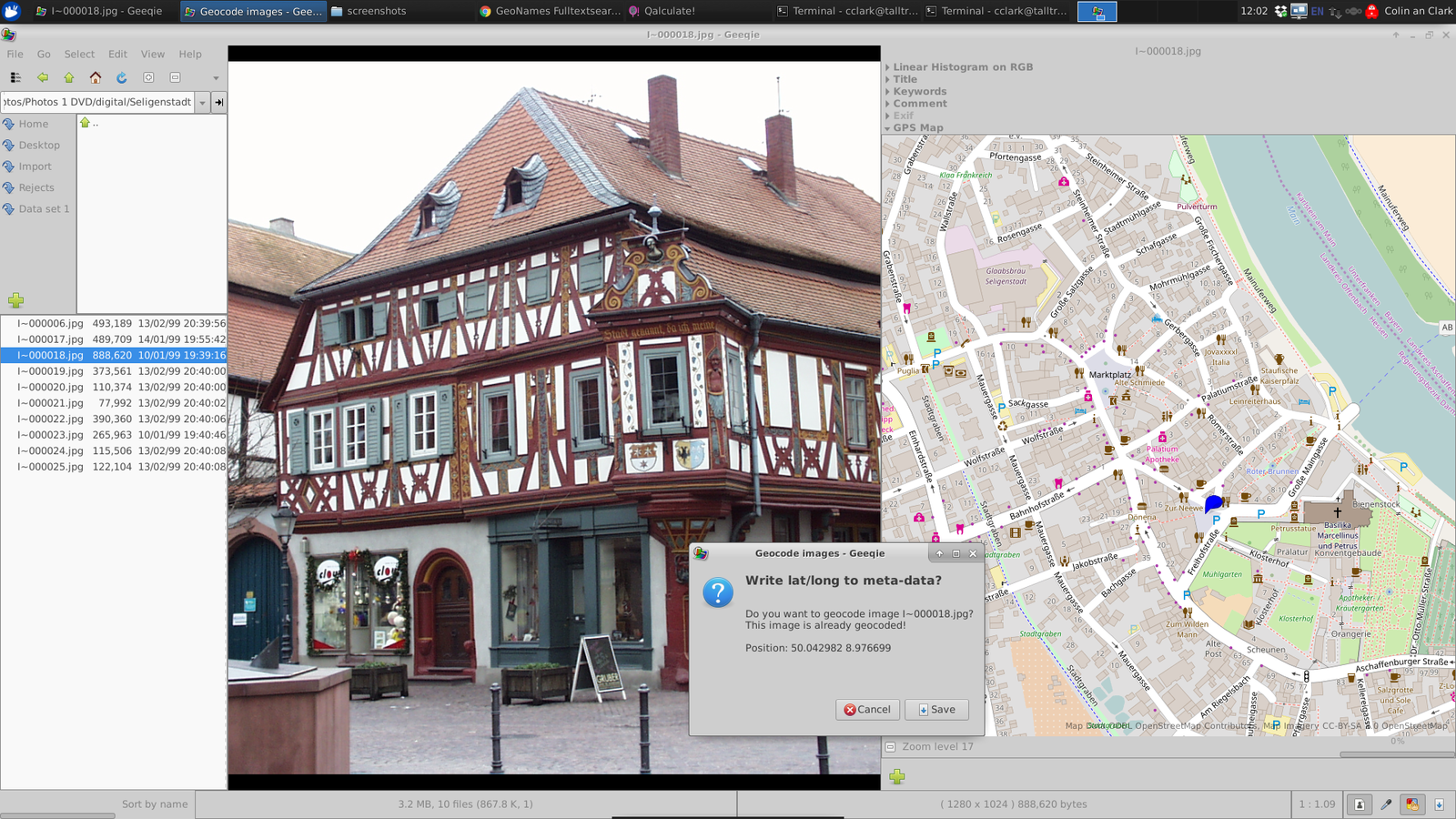
Geequi 😏

https://www.geeqie.org/

https://github.com/BestImageViewer/geeqie#features

Quite an advanced application. It's closer Digikam than any other above apps. It has a decent number of configurable options, but UI is full of craziness. Not that KPhotoAlbum craziness, but it's definitely not an Aves or iPhoto.

An interesting note - it looks like it doesn't use any kind of database to index your media. Such approach has both pros and cons. Main con is - when you get into some folder with a lot of items, it takes a while for Geequi to load everything. And you won't be able to find any photos across all your folders.

== version 1:1.6-9+deb11u1 (from debian repo) ==

(+) generates thumbnails for video
(-) doesn't have built-in video player
(+) recognized tags on photos
(-) but doesn't show all of them in a single place, so no tag-based navigation
(+) recognized GPS from photo and shows them on map
(-) you cannot pick a photo / number of photos on map to see them closer. Map navigation is very limited
(-) doesn't recognize dates, tags and GPS from video - raised #1034
(+) you can set/update GPS coordinates for photos
(-) crashes a lot
(-) searching is over-complicated

After playing with it for half an hour I found below bugs:
1) Preferences -> keywords -> search -> fill the list with duplicates
2) Cannot affect the starting folder. App always starts from home folder
3) Pressing "F" to go into fullscreen shows just black screen
4) I do have a sorting applied by "Exif date original". When I enter some folder with large amount of items, for the first time during the session, the very first file gets selected, then all metadata is getting loaded, sorting being applied and the file I was standing on appears somewhere in the random place, not the first one. This is somewhat expected from the logic point of view, but very inconvenient. How it should be done instead is:
-  the file picking pane should be disabled with some refresh animation being shown while all the images are getting loaded
- not to set the focus on the very first item which loads before all metadata is being processed from that folder

I decided to give it a try with more recent version. Flathub has 1.7.3 so I installed it.

== 1.7.3. from flathub ==

(+) crashes less than 1.6.9
(-) missing mini-map for GPS data (1.6.9 had it) - #996 has workaround
(-) missing thumbnails for video, cannot play video
(-) has the same bugs as listed explained above, except of black full screen

== 2.0.1 (latest version on github) ==

I haven't tested the latest version (2.0.1), as they don't publish appImage for aarch64 - raised #1035 for that. Will probably return back to it one day and compile it from sources. But so far I'm moving on. 

Geotagging ☝

https://github.com/jmlich/geotagging

Added it here as a kind of honorable mention. It's not really a photo / video manager, but it's a nice tool to enrich your photos with GPS data, if you had any kind of GPS tracker with you, which was writing a .gpx track file.

Gnome-photos 😡

https://wiki.gnome.org/Apps/Photos
https://gitlab.gnome.org/GNOME/gnome-photos

Current version is 43 and flathub has it, wow! I pay respect to gnome-photos developers to integrate their project properly to flathub. There's some issue with flatpak version of application though, it doesn't work properly: whenever I click to open a folder with pictures nothing happens, like some call to file picking dialog fails. Yes, I know, the developer left quite extensive instructions on how to troubleshoot it, but I see that from the screenshots the app doesn't do any of what we listed as our requirements.

gwenview 😑

https://apps.kde.org/gwenview/

(-) Even though it supports tags, it failed to recognize my tags on photos. The tags I set in Aves are appearing as EXIF / XMP / Subject, but it looks like gvenview is using it's own place to store it's own tags

(-) you cannot use tags for navigation - like to search by them

(-) all current versions are prune to high memory consumption and lead to system crashes. I already reported couple of bugs and they were even fixed, but you need to take the latest DEV version to get those fixes

(-) It doesn't have mini-map, out-of-the-box 

Memories / showmypictures 😡

https://anufrij.org/memories/
https://github.com/artemanufrij/showmypictures

Looks nice, was initially made for Elementary OS, but the project looks completely abandoned. Last update was made in 2018. 

Debian repository doesn't have it, flathub doesn't have it, appimagehub doesn't have it, snapcraft doesn't have it. Even modern Elementary OS releases don't have it. So skipping it. 

Photonic 😒

https://github.com/oferkv/phototonic/

Last update in 2018 :( project is dead

PhotoQT 💔

https://photoqt.org/
https://gitlab.com/lspies/photoqt

Actively developed, claims to support EXIF tags, video and face tagging. Debian repository doesn't have it, but the good thing flathub has it and it's the same latest stable version as being developed on gitlab - so I do pay respect to developers for doing packaging properly. I've been testing version 2.9.1

(*) the app doesn't use any database to store metadata. This is what it has in similar to Geeqie. So be prepared to limitations

(+) very-very nice looking UI, really one of the best
(+) it can do manual face tagging

(-) sorting of photos only by dates from files and not Exif date - #166
(-) it doesn't show all Exif tags, like Exif subject I set in Aves
(-) you cannot modify Exif dates, Exif tags or GPS coordinates
(-) it cannot navigate using Exif tags / nor find images by tags
(-) it doesn't have built-in map. If you click on GPS coordinates in Exif pane it opens up OpenStreetView in a web browser


Bugs:
- when I assign a face tags on a photo, PhotoQT overrides existing EXIF tags I had in a file (EXIF Subject). This is scary shit - #164
- (probably my own local bug) it doesn't play video correctly, only sound was appearing
- small UI bug - #165

QView 💀

 
Cannot compete at all, as it's just a single file viewer with no surfing capabilities

Photoprism

https://photoprism.app/

xxx

KDE Pix

https://apps.kde.org/pix/

xxx

KGeoTag

https://apps.kde.org/kgeotag/ 

https://kgeotag.kde.org/

xx

Mint PIX 💀

https://github.com/linuxmint/pix

Fork of gThumb for Linux Mint. Some minor things are getting polished, but nothing big

Darktable 💔

https://www.darktable.org/

Debian 11 stable has some outdated version like 3.4.1, so we're installing it from flathub. Good to see it has the most recent version 4.0.1

I played like 20 minutes with it and first impression is - WOW! Compared to all the above applications, it's like super champ. But it has few major flaws, which are making it impossible for us to use it. Not that they're flaws, they're more like principles developers have put into the basic design of it. I'll list them here:

(-) it doesn't support video in any form. Because it's photo editor.
(-) it deliberately not writing any metadata back as EXIF to files. It claims it's non-destructive app, no matter what. So all the changes are written to sidecar XMP files, which is a bullshit. 

Digikam 💓💓💓

https://www.digikam.org/
Source code: https://invent.kde.org/graphics/digikam
Forum: https://forum.kde.org/viewforum.php?f=255
Bugzilla: https://bugs.kde.org/buglist.cgi?list_id=2164853&product=digikam&resolution=---

This is a well known monster I know and love. It can do all the stuff we need.
We might have started with it, but hey, you would never looked at the above software first of all, right?

However, there are few important bits here: 

1) You'll need to make sure to take the version at least >= 7.3, this is where Digikam started to use exiftool. So you'll be able to read/write EXIF tags not only from photos but also from videos. 

2) Don't take the flatpak version until #44 is solved. As you won't be able to use exiftool. See also this

3) Considering #416516, #436876 and #366348 we might need to wait till version 8 (or build it ourselves), as exiv2 is still being used

4) I did my own tests with version 7.9 compiled from source code and whatever tags I was putting to my mp4 video files weren't written back to files by Digikam. Tested the same with last stable version 7.8. Raised #459928
I tried to build version 8.0 (from master) but it was failing.

Overall comparison

app name tag support gps support faces recognition comments
gThumb Only for photos Only for photos. Cannot be used for navigation. Cannot update No Good, but no metadata support for video
deepin-album ? ? ? Wasn't tested as it's hard to get
ShotWell Only for photos
Partially for photos Will be in 0.31/32
Very promising but currently lacks video support and geotags based navigation
KPhotoAlbum No Yes Very manual without proper tag support it's useless for my purposes
Geequi Partially, for photos. You can't navigate by them Partially, for photos. You can't navigate by them Very manual Without proper video support and navigation it's useless
Geotagging ? ? ? Wasn't tested
Gnome-photos ? ? ? Wasn't tested, as flatpak version doesn't work properly
gWenView Not really No No Useless for us
Memories / showmypictures ? ? ? Wasn't tested as it seems to be abandoned in 2018. Screenshots are awesome, like iPhoto :)
Photonic ? ? ? Wasn't tested as it seems to be abandoned in 2018
PhotoQT Not really No Manual tagging with overriding your existing EXIF tags because of bug Looks nice, but has some critical bugs
QView tag_support gps_support faces_recognition comments
Photoprism tag_support gps_support faces_recognition comments
KDE Pix tag_support gps_support faces_recognition comments
KGeoTag tag_support gps_support faces_recognition comments
Mint PIX tag_support gps_support faces_recognition comments
Darktable Only for photos Only for photos ? High quality app but cannot write metadata back to photos and lacks support for any video files at all
DigiKam Yes
Yes Yes The most feature-rich program

Start here

Disable Firefox from updating itself and flash those annoying "Restart to Keep Using Firefox" messages on you

I recently switched from Brave to Firefox. Just because Brave appeared to be some proprietary shit, even though they're masking themselv...