Showing posts with label lifehack. Show all posts

Quick and easy way to replace Google Music (RIP) / YouTube Music / Apple Music / Spottily

You might be the same as me, who doesn't find modern music entertaining and who only listens to music of bands/compositors I already know. 

You might have some other motives - like you don't want to pay for streaming services, if you already own all the music you listen and the only service you want is to be able to listen that from your smartphone without actually storing all these gigabytes of songs on your phone.

I have two awesome applications for you today.

Jellyfin


Jellyfin is an open source media server with optional web interface and lots of clients you can install to your iOS / Android phone. Fuck the Plex. Fuck the proprietary shit.

In a nutshell it works like this:

* you install Jellyfin on your home computer / server / SBC (like Orange Pi 4 LTS) 
* you create one or multiple accounts in there - it's simply username + password
* you configure it to tell where all your music / video is, just feed it with your local folders with music and movies you have
* it indexes all that, so you can easily find songs by titles / authors / album names later on
* you can optionally install a web interface, so you'll be able to use it on any other computer without installing a client
* you can also install a client to your mobile phone / some other computer. There're lots of platforms supported - https://jellyfin.org/downloads/clients 

If your Jellyfin server is not in the same network as your clients - like you want to hear your music / watch videos on your phone, when it's not in your home network, you can use one of the methods described here - https://orange-pi-4-lts.blogspot.com/2022/08/how-to-access-your-home-server-if-its.html

Nuclear


Amazing app, even though it is an Electron app. Unlike the Jellyfin, it doesn't give you any streaming options - it's just a standalone music player, but what it does, it allows you to listen to lots of music freely available on various sources like YouTube, Soundcloud, Bandcamp - whatever.

It has a nice UI and what is most important, a huge catalog of artists. And you can download everything you want, isn't that great? 


Ultimate cleanup of Debian/Ubuntu/POP OS/Elementary/whatever-is-using-APT and RPM based distros

In the previous exercise we have removed all the extra/unwanted/unneeded services from our distro, this time we are going to reclaim back some disk space.

First of all, why you might want to do this kind of cleanup?

We all know and laugh on Windows 10/11 disk requirements, right? But out-of-the-box Linux distros are becoming nothing better than it. And the reason for that is, distro teams are trying to squeeze as much as they can into the distribution, so most use cases will be covered. It might not sound like a bad idea, but what is the point for you, yes, specifically you, to have installed on your disk (and running as a daemon) such a thing as CUPS, if you don't even have a printer at home, right? Or having some graphical themes for your GRUB, when you don't care about bootloader beauty? Or having SNAP deamon installed and running, if you don't like vaping long-bearded hipsters and all the novelties and prefer your software to be installed from distro repo? Or why on earth you need to spare 300+ Mb on your hard drive to have "wireless-regdb" package (wireless regulatory database) for a system without WiFi?

As I mentioned, I do own an SBC which is running either off EMMC or off SD card. As you can imagine, the storage there is not endless. I wanted my OS to be as compact as it could be, without hurting much to its operation capabilities and not by paying a price of having a limited amount of applications. Quite the opposite - I want my free space to be used by the applications I use and by my own content (photos, music, videos). 

Secondly, the less free space you have on your solid state drive, no matter what generation it is, the less it will span. This might sound like a joke, unless you investigate that on your own, how SSD is operating and how writes are distributed across free blocks. Logic here is very simple, whenever you update something on your disk, the SSD controller will likely mark the storage cell occupied with your "old" data as clean, without actually cleaning it, and copy modified things around to a new storage cell. This approach is called "copy-on-write", and this is what all solid-state-drive controllers are doing, underneath the hood. So the less free space you have on your drive, the more pressure those free cells will get.

Before we begin

Your next best friend should be a tool like KDE Filelight or GNOME Baobab (recently was renamed to generic "Disk usage analyzer"). 

You open it up, and look very carefully what takes the most space on your drive. 

Delete apt cache

Unfortunately apt (a Debian-based distros package manager) has a bad habit of leaving the trash behind. It's just coded that way, so it first downloads the package to a local "cache"- your hard drive - and only then it installs it. And guess what? It doesn't give a shit to wipe out whatever remained after it. It's like if you never emptied your "Downloads" folder in Windows :) 

So we can do that manually:

apt-get autoclean
apt autoclean
apt clean


Compact the jorunal

Quite time ago, Linux distributions have switched from keeping a good old plain text log files under /var/log to something new and shiny. That something new was called journalctl. Basically that's a service which keeps up a binary log from whatever other service or software who wants to put something into system log. Binary here is a good thing in terms of space occupied, because it's using some kind of compression. But the bad thing about it, is that 90% of desktop Linux users don't even know how to look into those journalctl logs and they never do. 

If you're not a big fan of archeological digging into your old journalctl records from a month ago, I strongly suggest you to limit, how much logs can journalctl write to your hdd.

sudo journalctl --vacuum-size=100M

Delete extra locales

du -hs /usr/share/locale/*
find /usr/share/locale/ -type f -exec dpkg -S {} \; | sort -u

TODO https://serverfault.com/questions/394610/remove-a-locale-in-ubuntu/1037183#1037183


Delete extra kernels you don't need

First figure it out, what kernel you're running now:

uname -r

Check out what other kernels you have installed - the below directory usually gives a good indication about what amount of hdd is being used by kernel modules, so you can give it a second thought:

du -hs /usr/lib/modules/*

Then go ahead to remove all the kernels (and kernel-specific packages) you no longer need. Instead of 5.15.0-50 in the below example, use the kernel version from above, one by one:

apt list --installed "*5.15.0-50*"
# compose a list manually
apt purge <list of packages>

Delete snaps / flatpacks you don't use or alltogether


flatpak list
apt autoremove flatpak
rm -rf /var/lib/flatpak

snap list
apt autoremove snapd
rm -rf /usr/lib/snap

Remove the swapfile / swap partition

xxxx

Find and delete the fattest software

Unfortunately, I found no easy tool to use, how can you measure what is the storage impact of the packages you installed manually, considering all the dependencies it brought, when the dependencies are only needed to run that your package. All the GUI tools that are coming with various Desktop Environments are doing the same mistake - whenever they're calculating the size occupied by a package, they don't consider its dependencies.

So I had to make my own simple scrip: 

Debian-based distros


cat << EOF > /usr/local/bin/apt-space-used-by #!/bin/sh out=\$(apt-get --assume-no autoremove \$1 2>&1) ec=\$? if [ \$ec -eq 1 ] ; then size=\$(echo -n "\$out" | grep "After this operation" | cut -d' ' -f4-5) size=\$(echo \$size | sed -e "s/[^0-9kMG,.]//g" | tr 'k' 'K') echo -n "\$size\\t" else echo -n "0 (cannot delete)" fi echo -n "\$1\\t"
dpkg-query -W -f='\${binary:Summary}\\n' \$1
EOF
chmod a+x
/usr/local/bin/apt-space-used-by
# before we go any further we need to cleanout all the orphan pacakges, as they will be bothering our little script
apt autoremove


# now if you want to see what packages you installed manually will free what space
apt-mark showmanual | xargs -I % sh -c "apt-space-used-by %" | sort -h

# ... or whatever other packages which came with your distro
echo "" > /tmp/final_report.txt
dpkg-query -W -f='${binary:Package}\n' | xargs -I % sh -c "apt-space-used-by %" | tee -a /tmp/final_report.txt
cat /tmp/final_report.txt | sort -h

RHEL-based distros

cat << EOF > /usr/local/bin/yum-space-used-by
#!/bin/sh
out=$(yum --assumeno erase $1 2>&1)
echo -n "$out" | grep -qE "^Freed space:"
ec=$?
if [ $ec -eq 0 ] ; then
size=$(echo -n "$out" | grep -E "^Freed space:" | cut -d' ' -f3-4)
size=$(echo $size | sed -e "s/[^0-9kMG,.]//g" | tr 'k' 'K')
echo -ne "$size\t"
else
echo -ne "0 (cannot delete)"
fi
echo -ne "$1\t"
rpm -q --queryformat="%{SUMMARY}" $1
echo ""
EOF
chmod a+x /usr/local/bin/yum-space-used-by

# before we go any further we need to cleanout all the orphan pacakges, as they will be bothering our little script
yum autoremove


# now if you want to see what packages you installed manually will free what space
yum history userinstalled | grep -v "Packages installed by user" | xargs -I % sh -c "yum-space-used-by %" | sort -h

# ... or whatever other packages which came with your distro
echo "" > /tmp/final_report.txt
rpm -qa | xargs -I % sh -c "yum-space-used-by %" | tee -a /tmp/final_report.txt
cat /tmp/final_report.txt | sort -h

A word of caution regarding the last command. Imagine you have git installed. The "git" package brings with it a set of mandatory dependencies, it couldn't live without, like "git-man". So if you delete "git-man", it will also delete "git". This is why you will see some that both "git" and "git-man" packages will free up the same amount of disk space.

Once you figured out what you're ready to remove run:

apt autoremove <pacakgename>

Upsize your partitions

It might be the case, that you do have some unallocated space on your drive.  That's quite easy to fix. Imagine you have a disk (/dev/sda) with a single partition (/dev/sda1) and some free space after that partition. You first run lsblk to confirm what kind of layout you have, then you run parted and resize that 1st partition (/dev/sda1) to occupy 100% of remaining free space. And the cherry on a cake - you upsize the filesystem. That's it. Everything can be done online, without the need for reboot.

lsblk
parted /dev/sda
print all
resizepart 1 100%
resize2fs /dev/sda1


TODO

# remove dev packages you installed manually

apt-mark showmanual | grep -E "\-dev$" | awk '{system("sudo apt-get --dry-run purge "$1)}'

# remove 

It's safe to remove the content of your trashbin:
~/.local/share/Trash

See also what kind of programs you might have already deleted, but they left behind their traces:
~/.local/share

Like in my case I had some trails left by Konqueror (browser) I was experimenting with, and then used "apt remove" instead of "apt purge"
It's just me being not very carefull, but there's a good thing about it, we can pick up all such traces in one go:

dpkg --get-selections | awk '$2=="deinstall" {system("sudo apt-get --dry-run purge "$1)}'
dpkg --get-selections | awk '$2=="deinstall" {system("sudo apt-get -y purge "$1)}'


Building up Google Photos replacement using your hardware

If you think long enough, you'll figure that there are number of components you'll need. 

But before we go into all these details further, I need to share my view of what I think should be the best way of organizing our media library. The most important thing is, it should be using EXIF tags as a primary source of metadata for organization. 

Why EXIF tags? 

Simply because they could be or already are written inside of your media files - both photos and videos. So you won't be depending on some specific media library application, which is storing all your organization entities (what files belong to what events / dates / folders) somewhere deep inside of its own proprietary database. We want a flexibility as we don't want to be trapped into vendor-locked-in situation, so we need to ensure we will be able to migrate from one app to another. In future, when the time comes. 

Speaking of EXIF tags here, I'm not a big fan of getting deep inside of things like ISO, exposure, saturation, all that camera-technical shit. I'm not that kind of crazy photographer person, I don't care about all that. But what I do need is to be able to mark a bunch of photos with some human-readable descriptive tag like "2022.09 - Going far east". So I can later see, what tags do I have in my library and look only on photos having that tag.

We can, for sure, organize our own library using good old folders approach. Like to store together  photos/videos belonging to the same event. But that approach alone lacks flexibility, if we want the same photo/video to appear in more than just a single "folder". Or if we want to find all photos/videos made in a particular place. Or if we want to find all photos, we tagged as "retro cars" or "skiing in mountains". So folders might be nice for physical storage organization, but not as a way to access your media library.

Mobile app to view / modify media

First of all we need a photo gallery application on our mobile phone, as the most shots we're doing using it. We need to navigate through our photos/videos and modify them as needed. 

Requirements:

- modify dates of photos / videos
- modify GPS locations for photos / videos
- assign/modify custom EXIF tags for photos / videos
- recognize faces and objects in  photos and assign tags for them automatically
- explore your media library on your phone, utilizing all the above - dates, GPS location, custom text tags
- built-in map, so we could use it for navigation
- bulk editing features (to assign GPS, date and text tags to a bunch of items)
- built-in video player
- showing thumbnails for video

The best app I found is an open-source Aves. It's almost perfect, just missing support for modifying dates / tags for videos, but developer is there, he's super responsive and claiming this feature is already planned. I raised couple of small bugs and features requests and they were all processed. I do admire that guy. And he is among the minority (unfortunately) who really understand it, how to make proper user-friendly UI.

The next best thing might have been a proprietary app called Piktures, but it has an idiotic bug they don't recognize. And it's a proprietary shit. And it's missing half of features Aves have.

There's also a proprietary Android app called "F-Stop" but it's buggy as hell and UI is made for goblins. And the free version cannot do much.

So really, there's not many alternatives to Aves, so we stick to it. Thibault Deckers, mate, you're the best!

A way to sync our media across  devices

Google Photo mobile app does that for you, it's uploading photos from the device' internal storage to their own servers. So we need a way to do the same ourselves, as we're building a Google Photo replacement. 

Ideally you want to have all your devices to be synced with each other, like if you shoot a new photo on your phone, it should appear on your PC and on your tablet. If you modified that photo later on your PC, like you set proper GPS coordinates your phone "forgot" to set, this photo should be synced back to your phone and tablet. And all of that should work over the internet securely, as you might be away from home WiFi. This is called two-way sync.

In my previous post I explained how this can be achieved by using Tor and apps like FolderSync. Tor we need here just to bypass NAT, if our home PC is running behind ISP cgNAT and our own router's NAT. If you have a white IP address at home (or IPv6), you might not need it.

But there's also an open source app called SyncThing. You can also build a two-way synchronization with it and developers are claiming it doesn't require anything specific to bypass NAT, if you want to sync over internet. If you're windows user, give it a shot with SyncTrayzor, which is nice GUI wrapper for SyncThing. The setup is quick and easy, so you can share any folders from your Android to be permanently in sync with folders on your PC.

Desktop app to view / modify your media library

This is something, that Google Photo doesn't have. Google is only offering you a Web application. But we want to be able to browse our photo library (which is kept synced to our PC and all other devices as explained in the previous section) on a PC the very same convenient way how we do that on our phone with using Aves. 

Requirements for this app are the same as for the phone app I listed above.

Given we're on Linux we can benefit from a variety of open source apps. I tested lot of them and the only I can suggest is DigiKam, so we take it.


Web application to access your photos from remote PC and share then

This is the last piece in puzzle. And it's also optional and might be needed:

- if you're planning to share your photos by giving readonly access to specific albums to your friends & family (by just giving them some URL)

- if you're planning to view your whole media library while being away from your home network

XXXX

Exploring open-source android applications

Today I have just few words for you. They are ...

Aves

URL: https://github.com/deckerst/aves

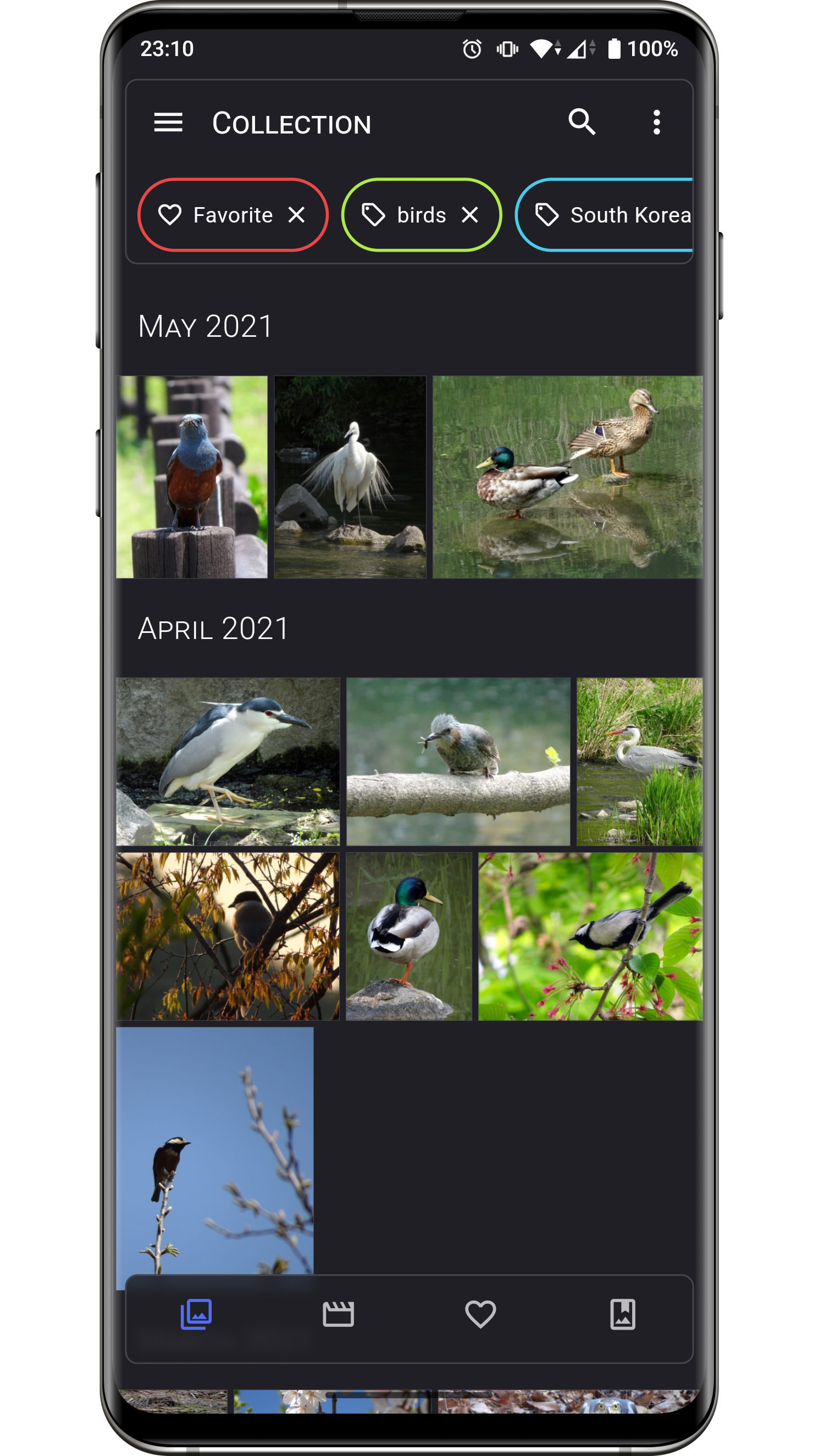
This is basically the best media gallery you can find for Android. Not only because it's open source, but it's actually one of the most feature-rich application which is being actively developed. What it can do now:

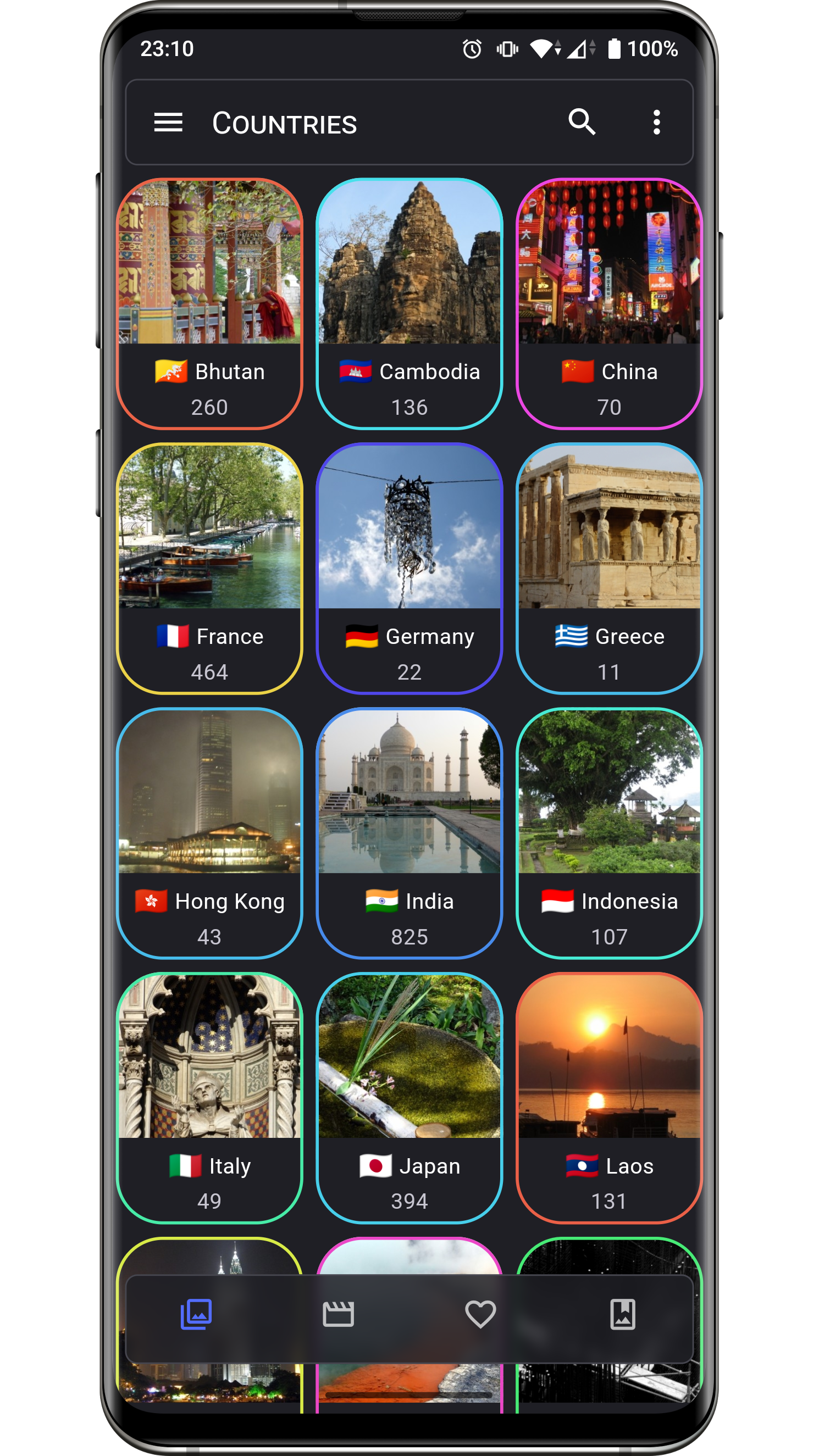
- read GPS data from your photos / videos and display them on map, like Google Photo does. But unlike Google Photo, Aves doesn't leak your data anywhere outside of your phone.  You can then use a map to find what photos you've made in specific places.

- update GPS data (so far only for photos). Typical use case: if you have a bunch of photos shared by your friends via messengers (like WhatsApp), they usually missing GPS data on them. But with Aves you can update them to whatever you need

- assign any custom free-text tags on your photos and search photos by them. Typical example: instead of putting your photos into different directories, you can assign one or multiple tags on them, like "2022 - Trip to Europe" or "Outdoor" and then you'll be able to see all your photos tagged with this tag. It's much more convenient and flexible way of organizing your media library, provided growing support for these tags from desktop applications, like DigiKam.

- fix date & time on your photos

More features are coming:

- objects and face recognition (offline! no google involved)

- assign GPS and tags for videos

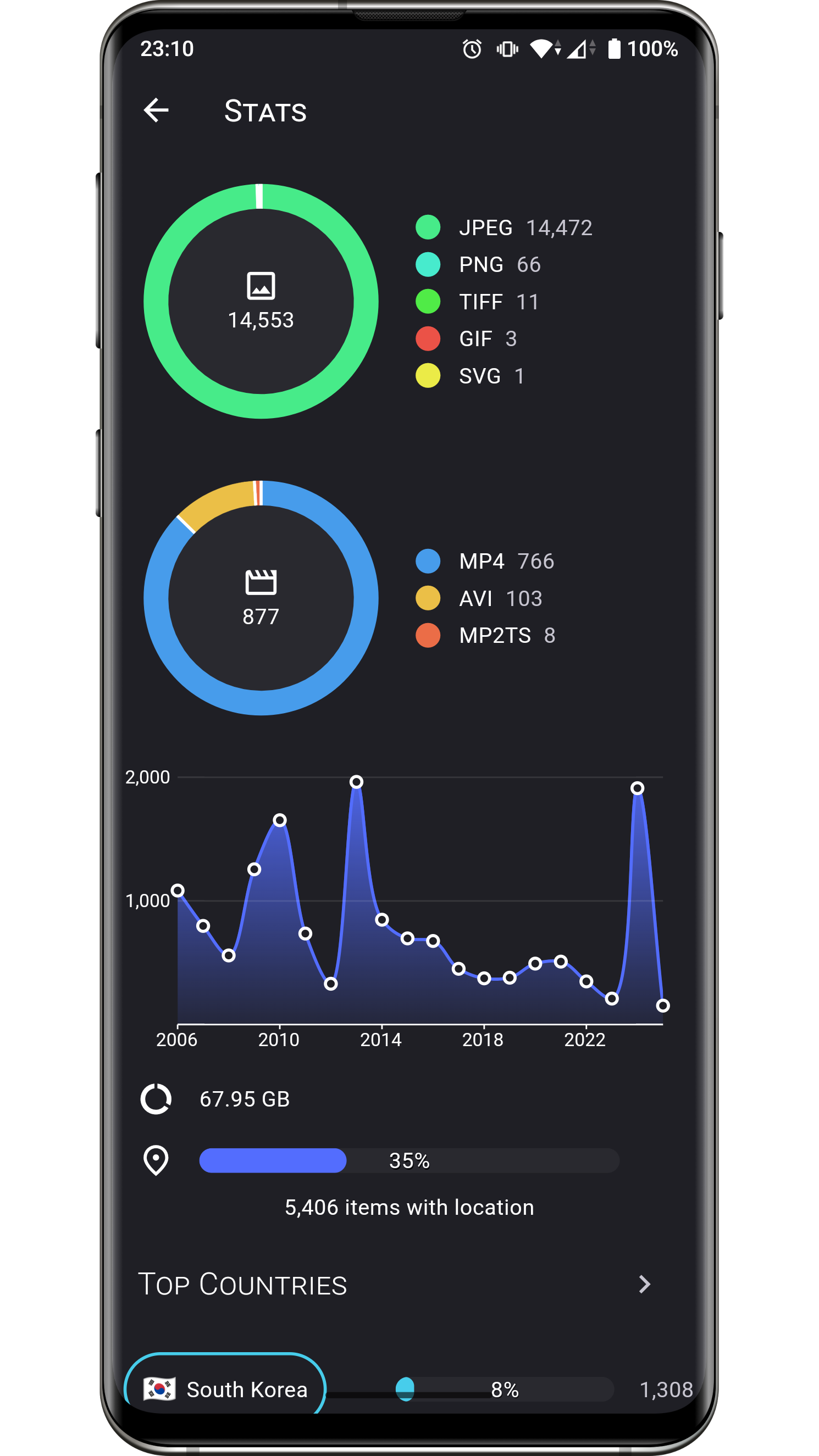
Collection screenshot Image screenshot Stats screenshot Info (basic) screenshot Info (metadata) screenshot Countries screenshot

Speaking of features, the only closest application I could find was an app named "Piktures" but it's proprietary, paid and it has a idiotic bug which basically prevents you from using free version. I reported it to developers, but they were too lazy to fix it.

LibreTube

URL: https://github.com/libre-tube/LibreTube

Google is known for controversial style of artificially limiting features in their free apps, to unblock them only if you pay some subscription fee. Like YouTube mobile app. Without paying you won't be able to download videos to see them later, when you have no internet connection. Or to listen to videos in a background, with your phone screen being turned off.

But that's not the case, if you're using LibreTube. Not only it offers you these features for free, out of the box, but it also allows you to watch youtube videos without watching annoying ads or being registered at all. You still can have your subscription lists and watch history, but they'll be stored locally, on your phone.

I think it's just awesome!


Home Search Player Channel Settings Subscriptions Subscriptions List Library Playlist

How to sync your photos from android over internet to your computer

I used to use Google Photos. And Apple photos. And Flikr. And God knows what other services. And I paid. Paid a monthly subscription for all of them. But then, I decided - what a hell!

So I started to bring all my photos back offline. It took me a while, but thanks to Google, Apple and Flickr - they  offer this kind of option to bulk download all your digital assets.

So now I have an external 2Tb HDD + I bought an additional 1 Tb SSD to my main PC and have all my archive of photos there.

It's still unsorted, or should I say partially sorted, with lots of duplicates, because during last years I was switching from iPhone to Android (and even back for some short time, while my Android phone was in the repair shop). And I still own both iPhone as a backup phone and lovely iPad Mini.

So what I wanted to have is a Google Photo replacement free download no adds no registration no monthly subscription how many SEO specialists you need to replace a lightbulb.

I drafted some major requirements of how I wanted it to work:

Over the air backups from phone(s) to computer

I want my photos to be backed up from my phone (both Android and iPhone) over the air securely to some location, so in case if my phone breaks I won't care about lost photos

Two-way sync

I want a two-way sync, i.e. if I delete some photos from my phone I want them to disappear from all my other devices - computer, tablets, whatever is configured. Or if I have some spare time to sort out photos on my computer, and I delete something, I want that to be deleted on phone as well.


This requirement is bit controversial, if it's not implemented properly. It means that I have to have a full copy of all my photos on my all devices - phone, iPad, computer. Otherwise if something will be missing in one place, this gap should be processed by sync process:

- either to delete the same files on other devices
- or to bring them back to this device 

Having full copy of all photos is not a problem for SBC, as we can attach bigger SD card or even multi-Tb HDD to it. But it is a problem for mobile devices, which are limited in their storage.

To overcome this negative side effect we will be syncing just last year worth of photos. I think every mobile device can handle that amount of photos. It means that if you'll be running out of space on your phone, you can easily delete photos and videos older than year ago, and this your deletion will not be propagated to other devices. 

Jumping ahead, this is where you can do this in FolderSync:


Implementation

This was quite easy. On my Orange PI 4 LTS (can't stop showing off ;-) I configured sshd. I also have tor there configured to expose 'tor hidden service' so I can SSH from my phone to my SBC from any remote point of the world

Then on my Android device I also have tor installed. The app is called "Orbot" and it's official Tor client. It's a bit  laggish but generally works fine.

Then I installed an app called "Folder Sync". If you know about any open-source android app like that - let me know.  Folder Sync has a free version with adds and it works quite well for our purposes. I have configured Folder Sync to connect to my tohostnamef8j28jfh9jfjh7sdhf2.onion:2222 and sync couple of Android folders (with camera pictures and screenshots) to appropriate folders on my SBC. It works just great, but slow.

When I am at home and my phone can use home WiFi  I also configured few other sync pairs with the same folders, thanks to FolderSync flexibility, but this time they will only trigger when my phone sees my WiFi SSID - so when I'm at home it reaches to my server without Tor. This thing is optional, and I did that just to check how flexible FolderSync is. You can skip this. 

TODO

If the connection speed over the internet is not enough (because of using Tor),  I probably have to back off and configure a tunnel using Cloudflare.


Setup and configure few web services to act as online gallery. Candidates are:

  • Photoprism
  • Piwigo
  • Lychee
  • Plex
  • Librephotos
  • Nextcloud

Some of them can even do the sync.

How to access your home server, if it's sitting behind NAT / Firewall / two NATs

Recently I stumbled upon this article https://raspberrydiy.com/access-raspberry-pi-over-internet/


I don't know if author will ever publish my comment, but here what I wrote to him:


==== cut ====


Oh mate, how can you trust to some random companies in such sensitive topics like security more than yourself? It's such a naive approach.

I'll tell you this: configure an SSH daemon on your Raspberry PI (here and after, the same applies to  anything running Linux). Make sure to disable the password-based authentication in sshd config so your weak passwords won't be bruteforced, while leaving only sshkey based authentication. Restart the sshd. Check you're only able to connect to your PI with using ssh-key and not the plain text password.

Now you can safely configure a port forwarding on your router to expose just-and-only 22 port from your PI to the external world. Nothing bad will ever happen to you. No Chineese or Russian hacker  will be able to get through that door. It's such a basic idea.

You should more trust to SSH rather than some random list of companies on internet, who only promise you that you'll be safe. Even if those companies are having some big names, like Google. Didn't you know you can use Chrome for remote accessing your PI? "You can" doesn't mean "you should".

All these companies are doing pretty much the same thing - they ask  you to install their own software on your machine in a way to create a "secured" network tunnel from your machine to their servers. So then you can grab your phone/tablet/laptop and access their servers from anywhere, they will authenticate you, and allow to use that your tunnel. But you see, this whole idea is just bleeding with a number of issues:

- the software they suggest you to install to your PI (usually they call it an agent) could have a backdoor,  malware, virus, having bugs or just silently mining some cryptocoins on your PI - you'll never know that until it's too late. On a contrary SSHD doesn't do that.

- you need to trust that the "protected" tunnel that software creates is really protected. Not just because they say so. At least you would want to look on the network traffic with tools like tcpdump/wireshark while copying some text file remotely. The thing is, if some 3rd party proprietary software is used for tunneling, developers  can easily miss some bug there or just not to use proper level of encryption (remember HTTP days?) so anyone in between your PI and their servers would be able to  see what you're doing on your machine. Again SSHD is far more secured than any random implementation of any "protected" tunnels from these companies.

- you need to trust these companies  won't let anyone else, apart from you, to login to their web servers and use your "secured tunnel" to get onto your PI. On a contrast to this, if  you're using SSHD + key based authentication noone apart from you will ever be able to authenticate.

SSHD is everywhere, it's used on a every single server. I do believe all these companies you listed are managing their own servers by logging on them with using SSH and not their own shitty software.

Trust me, you don't need all those  companies and their software. They are only existing due to the fact that most people are foolish / scared /  lazy / believing in fairy tales or just uneducated (yet).

Learn how to use SSH properly. You can tunnel everything through it.   You don't need all that extra software from some random companies, like you're not allowing yourself to swallow any random medicine on a market.

==== end of cut ====


Here I just wanted to add something on a top of that. If your ISP (internet service provider) has assigned a private IP address to your router, of course the port forwarding doesn't make any sense, because you'll be only exposing your ports to the inner network of ISP where your router exists probably together with similar routers of other ppl.

There're lot of ads of services on internet, which allow you to build pretty much the same as that guy listed - but none of them can be trusted due to the same reasons I listed above. I senselessly suggest you to avoid all of them:

https://www.pitunnel.com/
https://www.socketxp.com
https://www.dwservice.net/
https://remotedesktop.google.com/?pli=1
https://www.realvnc.com/en/connect/
https://www.remote.it/
and many-many others.

What you should be using instead are services, that are either open-source or based on the existing well-known technologies or disclosing it clearly, how do they traverse the NAT.


Tor and its hidden services feature

Here is my post on how to get it configured in just few simple steps

I2P - Invisible Internet Protocol

https://geti2p.net/en/

FreeNet

https://freenetproject.org/

Cloudflare tunnel

First of all, if you don't have a domain name, you can get one, even for free. See https://www.getfreedomain.name/ for various options (it is just an information site, they don't provide any services).

Once you have a domain name you can configure it to be served by Cloudflare name servers. Then you configure a tunnel, which requires you to install and run a special software in your LAN to keep that tunnel up and running. For personal and hobby projects they do offer a free plan. 

There're lots of tutorials on internet how to do so, here is one - https://youtu.be/uTwjJaoknBA

Some more advanced stuff, like protecting your services with additional Cloudflare authentication - https://youtu.be/eojWaJQvqiw

Wireguard 

https://en.wikipedia.org/wiki/WireGuard

Wireguard is akin to OpenVPN - that is the software which simply speaking creates secured tunnels between endpoints. 

Typical use case: if  you have a machine within your LAN, which runs a service you want to access to  outside of your LAN, you install and configure Wireguard somewhere within your LAN, and on the remote machine you want to have access from. Then, assuming your router gets real IP from your ISP  you configure your router to do the port forwarding to where you have Wireguard installed, so now you can use your remote machine to establish a safe connection to your home LAN.

Another use case, is if you don't have a real IP at your routers from ISP. Then you rent a VPS (which is by nature is having a public access from internet) and configure Wireguard there and somewhere within your LAN. These two endpoints will be connected by a secured tunnel. Then you have two options: either to install Wireguard on the device you want to remote access your service@home, so it will be "included" into this virtual LAN, or you expose the service on VPS.

Tailscale (or Headscale)

It is akin to VPN - you install the special software on all your devices, and if it's up, they appear in the same network. Even if those devices are behind firewall. If you want to selfhost something at home just for yourself, so you can access your own service from anywhere in the world, it's fine. 

But it doesn't work if you want to host a service, which you want to make available for yourself or other people without installing an additional piece of software. 

The good thing about Tailscale is that they opened source both client and server. They didn't went opensource for the managment / configuration server, so the opensource server is quite stripped, but still very useful, if you don't mind to host it on some VPS which is having a public IP address.

https://tailscale.com/opensource/

If you do trust to the server provided by Tailscale themselves, you can opt for Free plan, which allows you to connect up to 20 different devices together in the same virtual network. 

Zerotier

Similar to Tailscale. Even plans are similar. 
https://en.wikipedia.org/wiki/ZeroTier

Nebula

httptunnel

xxx

Tinc

http://tinc-vpn.org/

route48.org

xxx

Typical NAT traverse techniques 

https://blog.apnic.net/2022/05/03/how-nat-traversal-works-concerning-cgnats/

UDP hole punching
STUN / TURN / ICE


See also:

Quick guide to Tor

Installation

The apt takes care of everything, including creation of proper systemd units and starting the service up. The only additional thing we install on a top of tor is torify which makes it super easy to wrap all the network traffic from any binary to be tunneled into SOCKS5 proxy created by tor: 

apt install tor torify

Using torify wrapper

torify curl icanhazip.com
torify lynx rutracker.org
torify --shell


Configure Tor as https proxy (skip that)

In some rare cases you might want to use HTTP proxy instead of SOCKS5.
Tor can create you a local one out of the box for you. For that modify tor config and restart the service:

echo "HTTPTunnelPort 9080" >> /etc/tor/torrc
service tor restart

Be careful while using it, it's not "normal" HTTP proxy, as doc is suggesting it's HTTP CONNECT type of proxy. Don't know exactly what that is, need to google that, but my simple test worked just fine:

https_proxy=localhost:9080 curl https://icanhazip.com


Configure SOCKS5 proxy in KDE

For some weird reason Chromium is too limited in terms of how can you configure it from UI side, proxy-wise. Like in my case it can only "nest" proxy settings from the system - in my case from KDE systemsettings. 

1) open "System Settings" KDE app or run it /usr/bin/systemsettings5
2) navigate yourself to "proxy" configuration. Just type "proxy" in a top left search
3) select "Use manually specified proxy configuration option"
4) leave all the fields blank apart from "SOCKS5 proxy", where you put localhost port 9050
5) if you want that proxy (tor) to be used only for specific domains, specify them in the "Exceptions" list, comma separated and tick the checkbox "Use proxy settings only for addresses in the Exception list". If you want to include some domain with all its subdomains you'll need to precede it with dot: ".domain.com"
6) hit apply it should be picked up immediately by Chromium - just go there and test, no need for relaunch 

Create another application link for Chromium to run it under Tor SOCKS5 proxy

As an alternative option  I have just created another "application link" for Chromium but this time it starts the browser with CLI option to use SOCKS5 for everything:

root@orangepi4-lts:/usr/share/applications# diff chromium-tor.desktop chromium.desktop  
3c3
< Name=Chromium over Tor
---
> Name=Chromium Web Browser
131c131
< Exec=/usr/bin/chromium --proxy-server="socks5://localhost:9050" 
--user-data-dir=/tmp %U

---
> Exec=/usr/bin/chromium %U

And that's it. Now if I need to open some website which is blocked in my country I just open that "Chromium over tor" link. 

If you gonna make any further modifications to this .desktop file, make sure to delete the app from "favorites" and add it again. The trick is, when you add the app to "favorites" in KDE, it looks like it silently copies that .desktop file from /usr/share/applications to somewhat else location, so whatever changes you're making to original .desktop file from /usr are not getting reflected on your shortcut from Favorites tab.  

The  --user-data-dir trick was needed to actually launch a second Chromium instance, if you already have an instance of browser running without SOCKS proxy. Without it, Chromium just launch an additional process to existing group of processes, where that --proxy-server parameter wasn't set. 

https://superuser.com/questions/1281208/command-line-option-to-open-new-chrome-process-group 

Much better option - use Firefox + plugins

Firefox also a bit lazy one in terms of properly fetching KDE system settings and it requires its own configuration. But there're plenty of plugins you can use.
See here for more details - https://orange-pi-4-lts.blogspot.com/2022/08/few-notes-on-web-browsers-they-all-are.html

So I have Tor up and running. And I configured my browser to use it as SOCKS5 proxy. What's next?

Well if you want to bypass territorial restrictions, like if your government is blocking some websites - you can use Tor as a transport for your traffic to bypass all those your local firewalls and visit web sites you want. It works like that:

1) Your web browser will be connecting to SOCKS5 proxy, which is also running on your machine, created by Tor.

2) Tor's SOCKS5 proxy will be taking your traffic and route it through number (usually 3) of Tor network relay until it exits tor network and goes back to public internet via one of the Tor's network exit nodes. 
 
3) You can affect tor to tell it what exit node to use. Or rather what country that exit node should belong to. Because if you're living in country A which is blocking a website B located in C, it doesn't make sense to route your HTTP requests from browser via Tor in a way they will exit from tor network to Public Internet via exit node located in country A :)

If you want to access your home PC from eveywhere, even though it might be located behind your router's NAT, which might be located behind your internet service provider' NAT (Carrier Grade NAT - or CGNAT) you can spin up a tor hidden service. It's a pretty straighforward thing to do:

1) choice how you want to access your home pc, like by the means of what service - sshd? xrdp? vnc? set that up and make sure it's working in your LAN (nmap localhost, try to make a local connection from other device within the same network).

Make sure you set your service up in a secured manner, which means no simple passwords, no logins under root, traffic should be encrypted - all that stuff. Check /etc/shadow just to see you don't have any extra users with defined passwords. Check /etc/passwd to ensure you don't have any unknown local user records allowing someone to log in:

cat /etc/shadow
cat /etc/passwd | grep -v nologin


2) edit /etc/tor/torrc to add (or uncomment) these lines:

HiddenServiceDir /var/lib/tor/hidden_service/
HiddenServicePort 2222 127.0.0.1:22


What it means is that within the Tor network your host will be exposing a port number 2222 (just for the sake of obfuscating things a bit). Whatever connections will be made to it will go to your localhost' 22 port (which is my SSHD port). Adjust it to your taste if you want to. Like if you want to use different method of accessing you will

3) restart tor and see what onion hostname you've got

systemctl restart tor
cat /var/lib/tor/hidden_service/hostname
4) that's it! now you can go to some other host in any remote place in the world, configure Tor there and establish a connection to your h82ufjjd293kd29fj.onion:2222 port via SSH. Just make sure the client program you'll be using (ssh client, rdp client, vnc client) will be routing its traffic to that host local SOCKS5 proxy provided by tor

Using tor bridges

It might be the case, that your local tor service won't be able to connect to Tor network. This happens in countries which are attempting to ban Tor - so they force their ISPs (internet service providers) to block connections to tor entry nodes.

But the great thing is, community is helping us in form of running additional entry nodes, aka tor bridges. In order to configure them you'll need to do the following:

1) install obfs4proxy:

apt install obfs4proxy

2) go to https://bridges.torproject.org/bridges/?transport=obfs4 enter the CAPTCHA and get some bridges for you. They will be in a format like:

obfs4 123.45.67.89:1234 JISJGOSESDFOKF3 cert=F3g9j29jfxxx/UUIJN3d8Qf77NQw iat-mode=0

The more you get - the better.
 
3) add the below lines to your /etc/tor/torrc:

UseBridges 1
ClientTransportPlugin obfs4 exec /usr/bin/obfs4proxy
Bridge obfs4 123.45.67.89:1234 JISJGOSESDFOKF3 cert=F3g9j29jfxxx/UUIJN3d8Qf77NQw iat-mode=0
 
 
4) restart tor and see how it goes now:

/etc/init.d/tor restart
journalctl -u tor@default -a -f


Homework

- modify tor config even more to accept connections from anyone in my home WiFi network, limit the relay traffic, get to know how can I monitor network activity coming through tor.service

- to read more about tor, torify, SOCKS5

- why does Tor officially publishes list of IPs for their exit nodes (https://check.torproject.org/torbulkexitlist)? It doesn't make any sense. Answer

- how does the tor service on my PC know where to connect? Does it have any list of IPs or something? Just curious if these IPs will be blocked in my country and what will be the workaround

- speaking of HTTP_PROXY, if I can use http_proxy to access https resources?

Start here

Disable Firefox from updating itself and flash those annoying "Restart to Keep Using Firefox" messages on you

I recently switched from Brave to Firefox. Just because Brave appeared to be some proprietary shit, even though they're masking themselv...